- Welcome to Broadcast Urself Forum.


News:
SMF - Just Installed!

User
Stats ezBlock
 Members
Total Members: 6
Latest: Petey
New This Month: 0
New This Week: 0
New Today: 0
 Stats
Stats
Total Posts: 18
Total Topics: 14
Most Online Today: 7
Most Online Ever: 96
(May 24, 2024, 04:52 PM)
 Users Online
Members: 0
Guests: 3
Total: 3
Recent posts
#11
Change Log / Change Log From 1.2.3 to 1.2.4
Last post by DeadlyDeathAngel - May 24, 2024, 01:07 PMGreetings, We've moved the Requester Logs to Here! So Now Broadcast Urself!!
-> Youtube Downloader not working as of 1.2.3 due to domain change.
-> Database of Admin Page to actually acknowledge the ban list.
-> Added Global Choice to ban user over all.
-> Fix of Settings2.xml
-> Youtube Downloader not working as of 1.2.3 due to domain change.
-> Database of Admin Page to actually acknowledge the ban list.
-> Added Global Choice to ban user over all.
-> Fix of Settings2.xml
#12
Removal Of Sam Broadcaster / Removal Of Sam Broadcaster & X...
Last post by DeadlyDeathAngel - May 24, 2024, 12:52 PMTo Remove Sam Broadcaster & Database Setup. This is ONLY To FULLY Remove Sam Broadcaster And Database Installation! For This Guide We've Guessed That You've Installed XAMPP previously, there is two ways to remove this we'll be going into depth of both; Sam Broadcaster DOES NOT REMOVE EVERYTHING!! The Setup will leave behind some personalized settings, these are located in a separate folder called %LOCALAPPDATA%!
You can do this using the settings tab of Windows - or Use Revo
(side note: If you're an older person who remembers Control Panel we can still use that - to bring that up you would want to press START BUTTON and search for Control Panel or Start Button + R (pops up Run Command)!)
https://www.revouninstaller.com/start-freeware-download/
Revo will scan for all previously installed items. Revo Uninstaller is FREE
-> BUT THIS SOFTWARE DOES NOT FULLY REMOVE SAM BROADCASTER.
For This guide I'll be using Control Panel Route: This Means We Need Run So Start + R
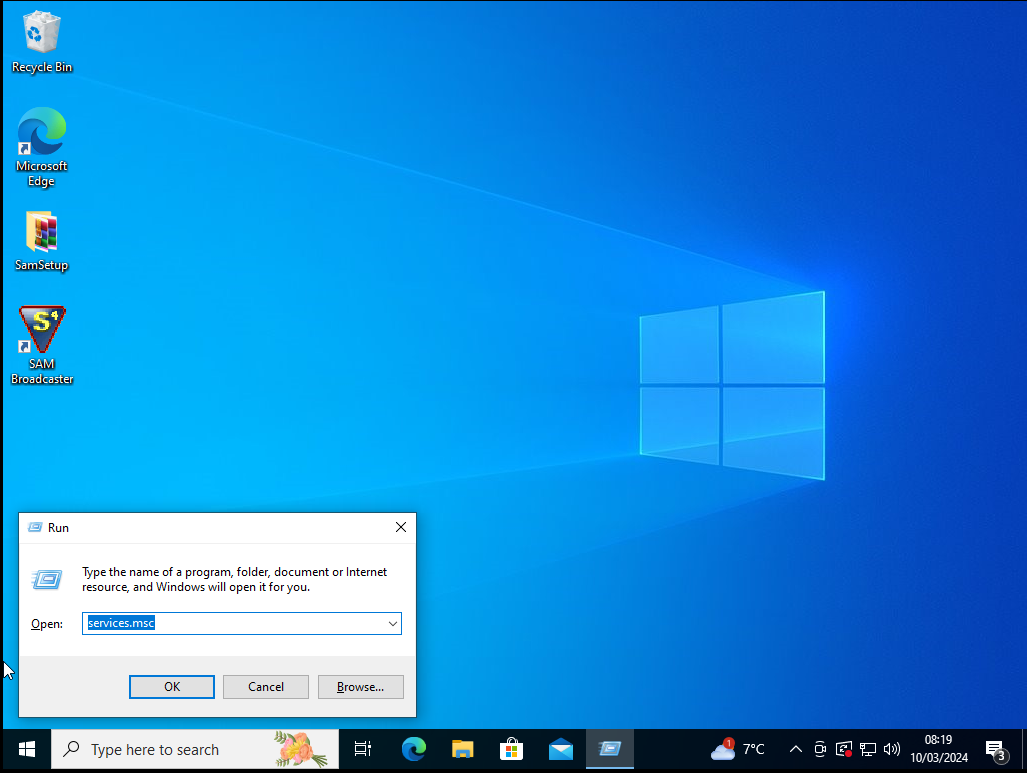
In the Box (Currently says Services.msc YOURS WILL BE BLANK (hopefully)) Type in Control And hit OK
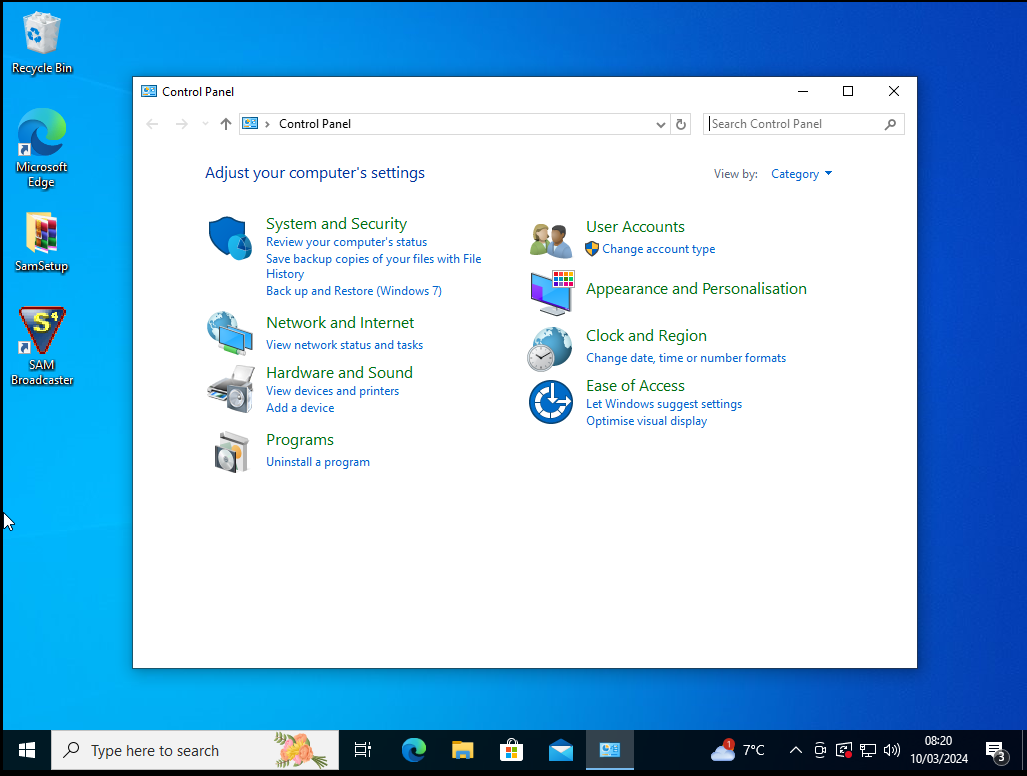
Under Programs - Uninstall a Program Option (Under Category option)
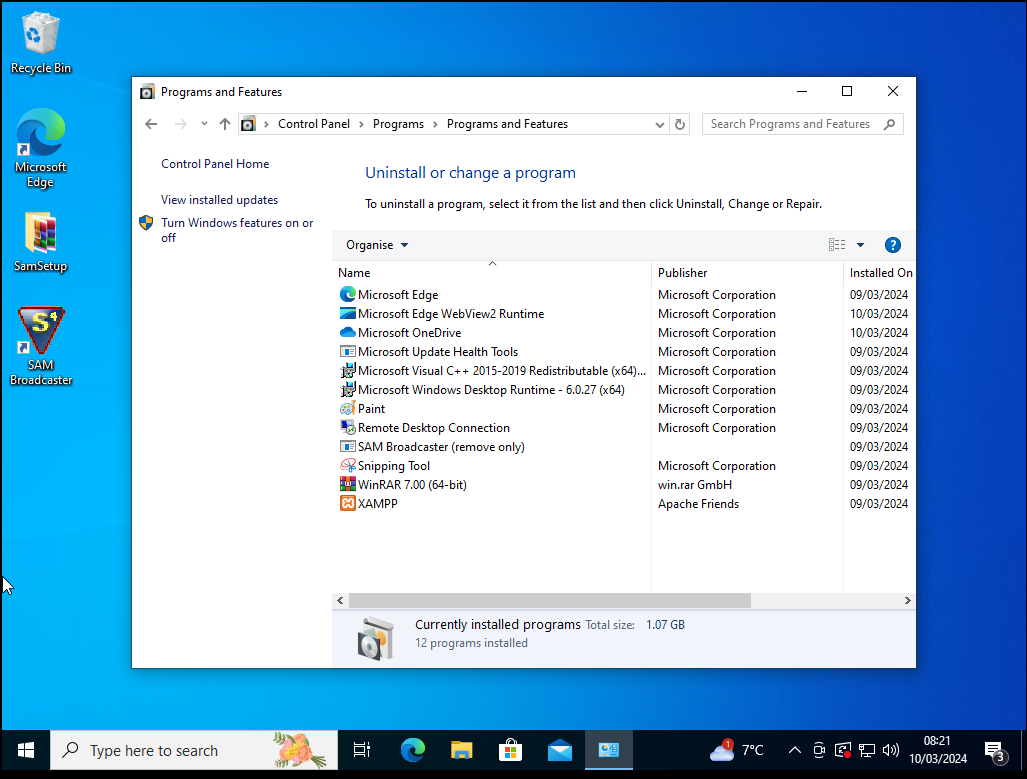
You should have more applications than this, if you use this on a daily bases. BUT if its like mine; you should look for SAM Broadcaster (remove only) Then Click on it and click on Uninstall/Change
UAC Might Pop up (UAC Is User Account Control) - Hit YES
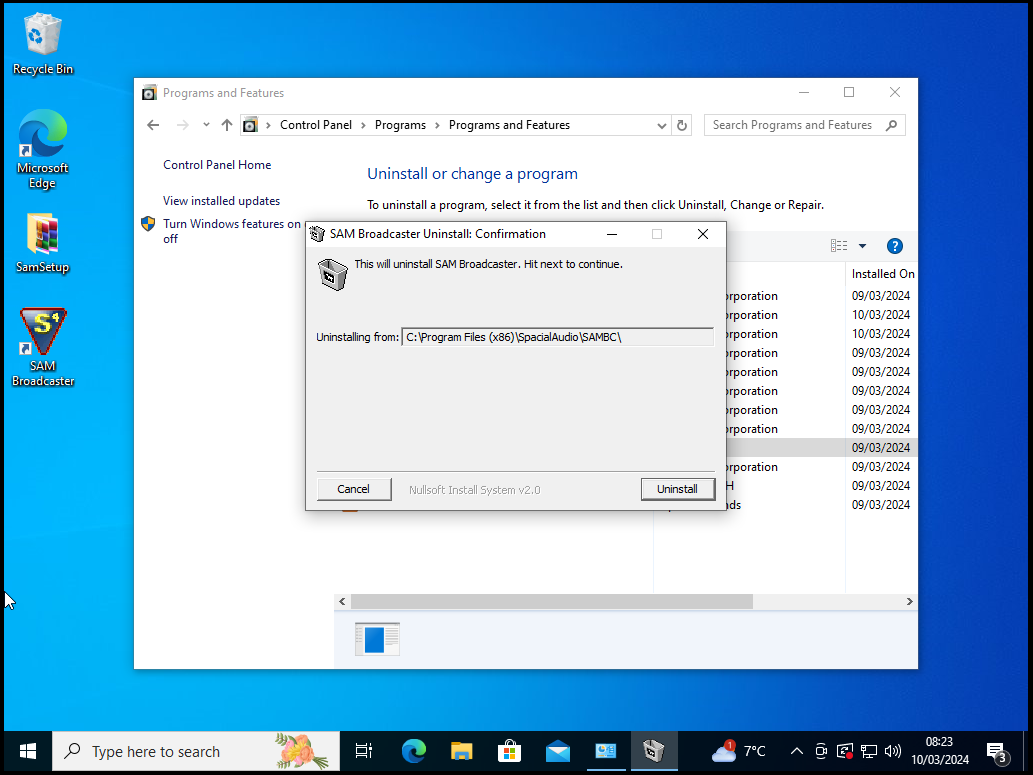
Then Hit Uninstall
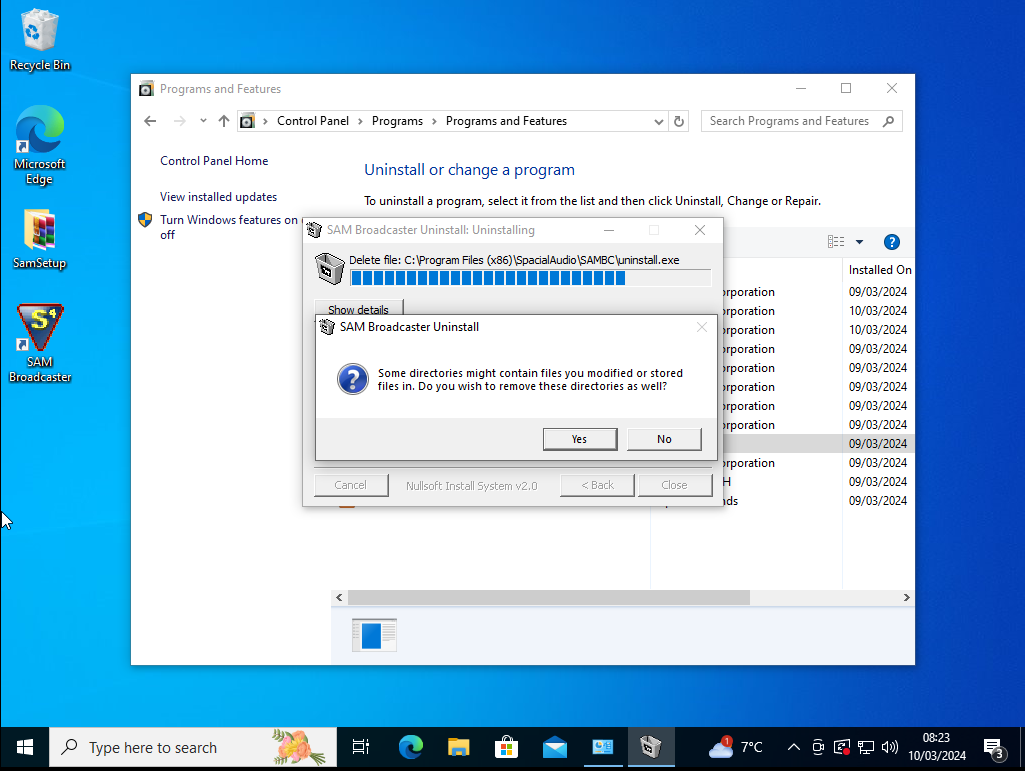
Hit Yes
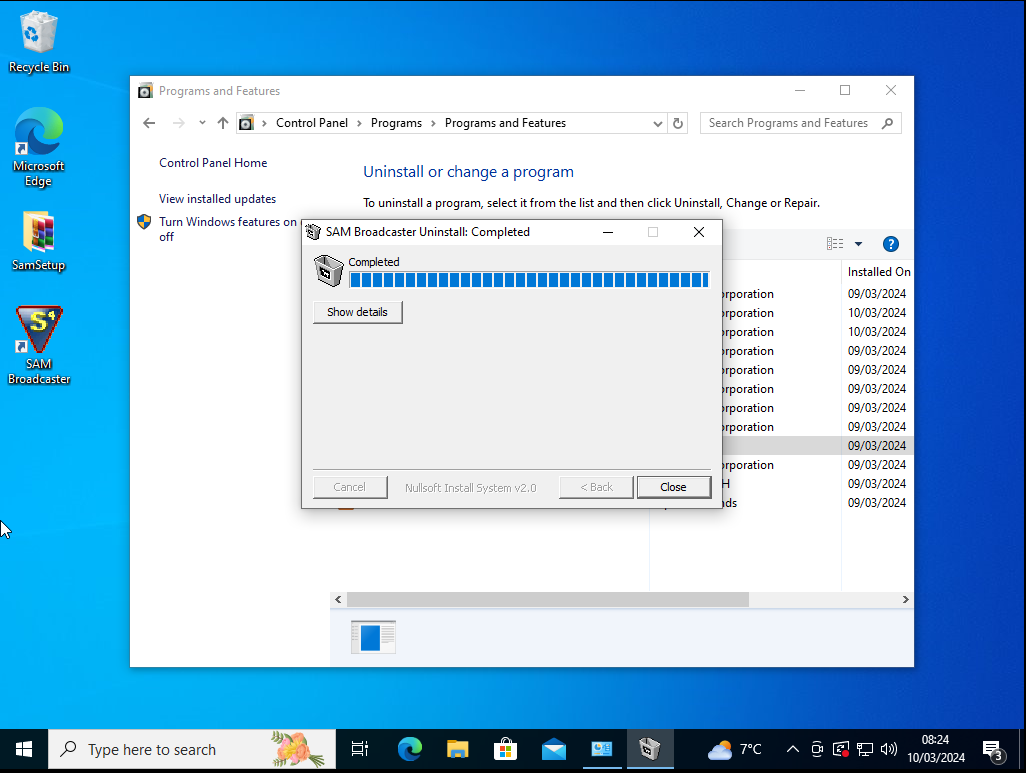
Then Hit Close. It Should Return to Programs And Features; Select XAMPP - Then Uninstall/Change
UAC Might Appear again! Hit Yes!
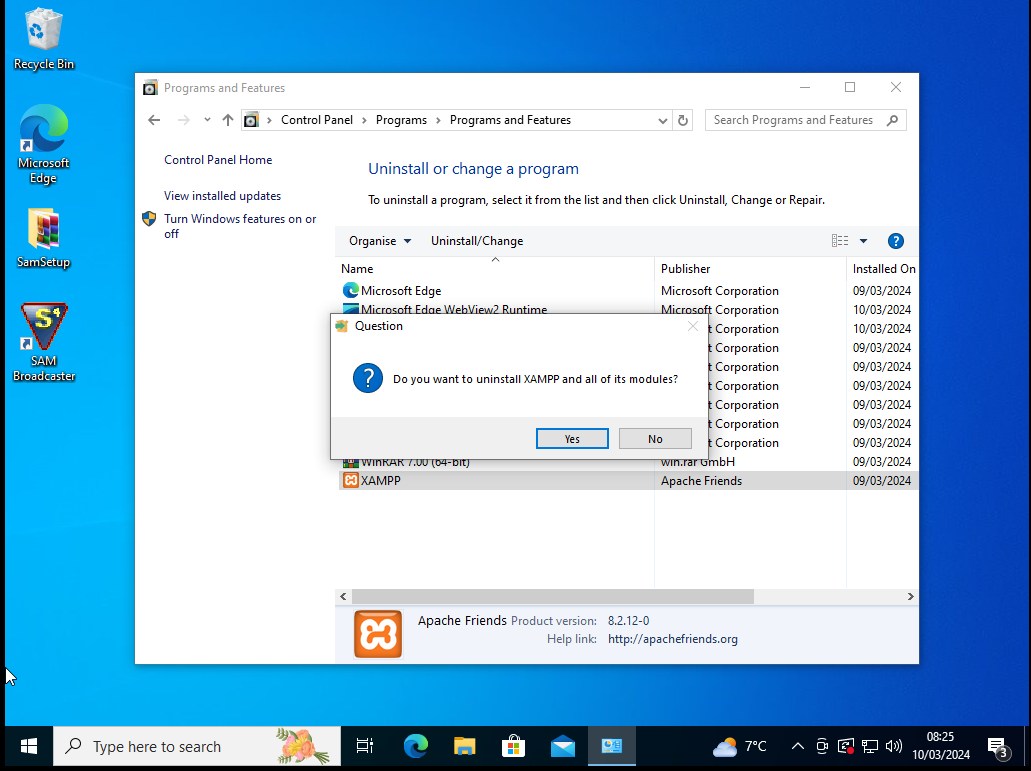
Hit YES.
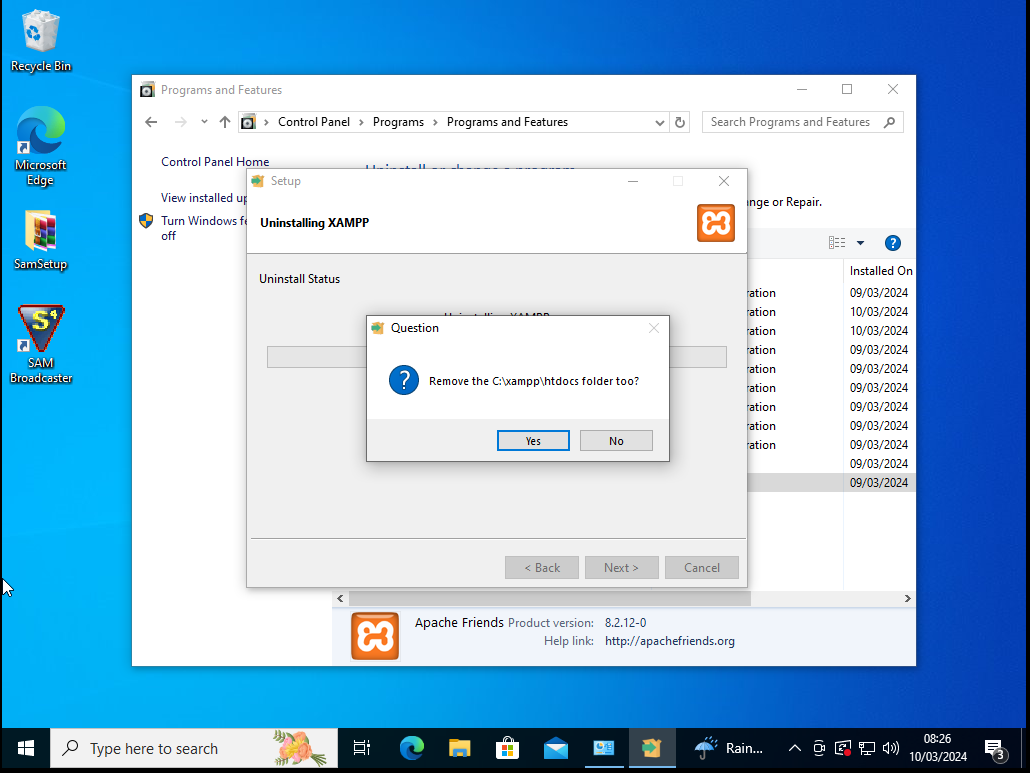
Hit Yes....Now wait for it to complete
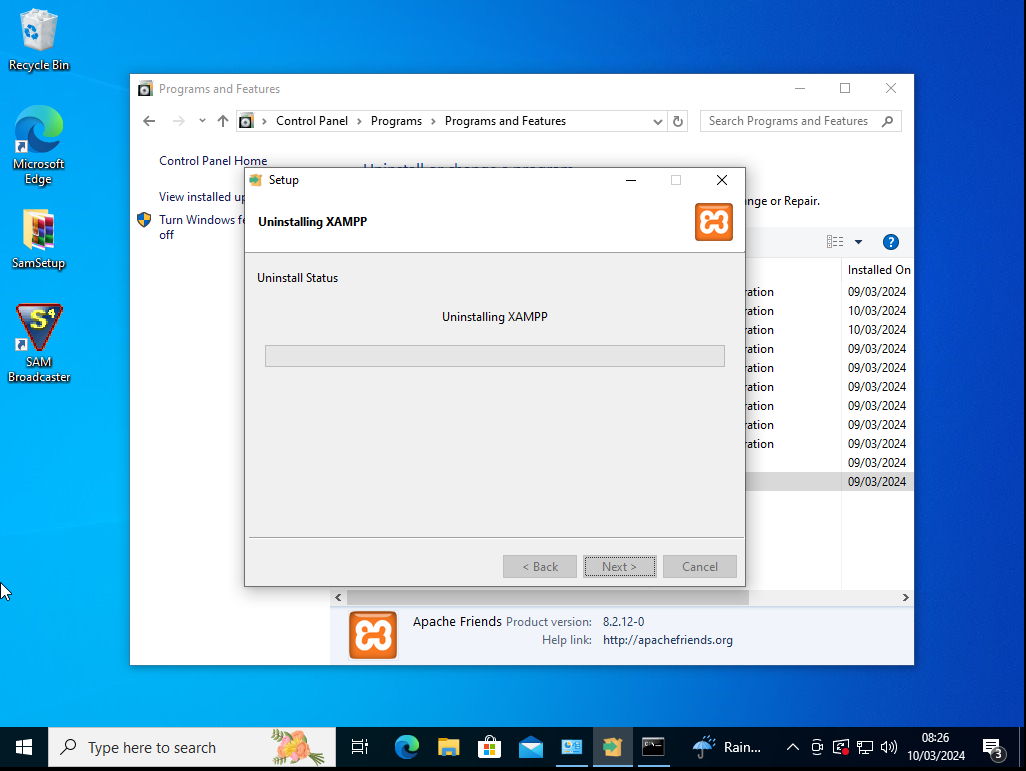
The Jack Daniels looks promising right now.....all the need to destroy some braincells while we're waiting for removal. Sometimes, though XAMPP will crash a little, which means we've gotta close this:
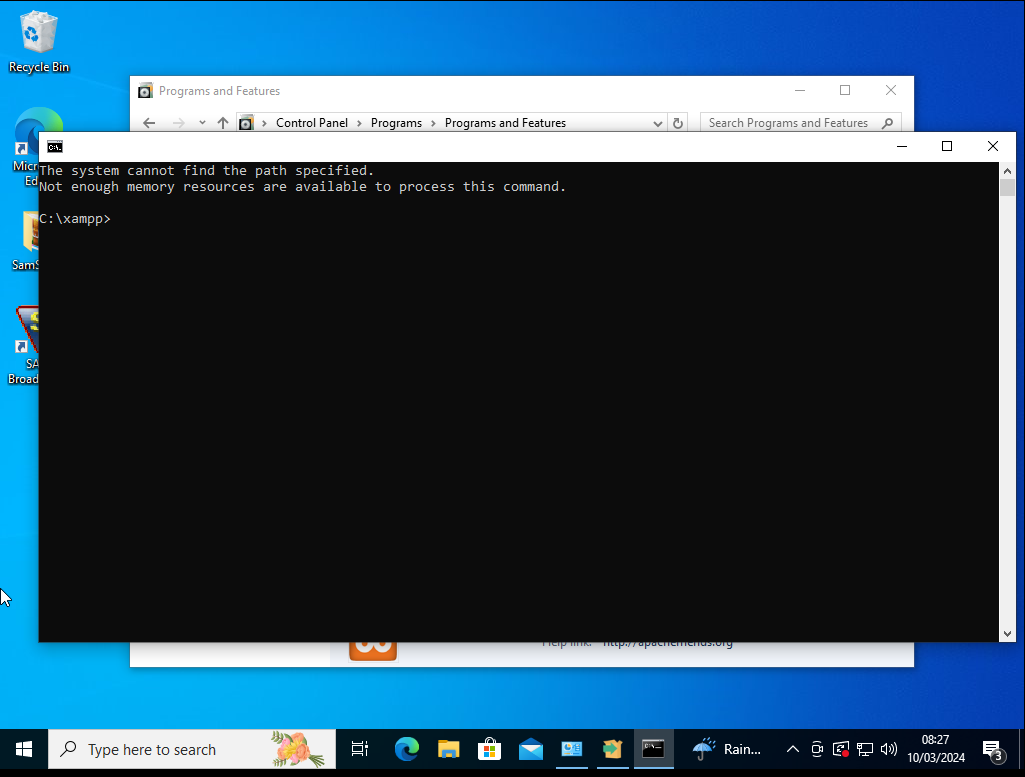
IF It reappears again close it again for it to continue....Man this Jack Daniels is nice....a little strong but hey its Jack!
Now we need to do a little clean up with the Sam Broadcaster; As mentioned earlier in the guide this requires to go into %LOCALAPPDATA%, BUT its best to wait until the "Setup" of Xampp is done so it appears with this:
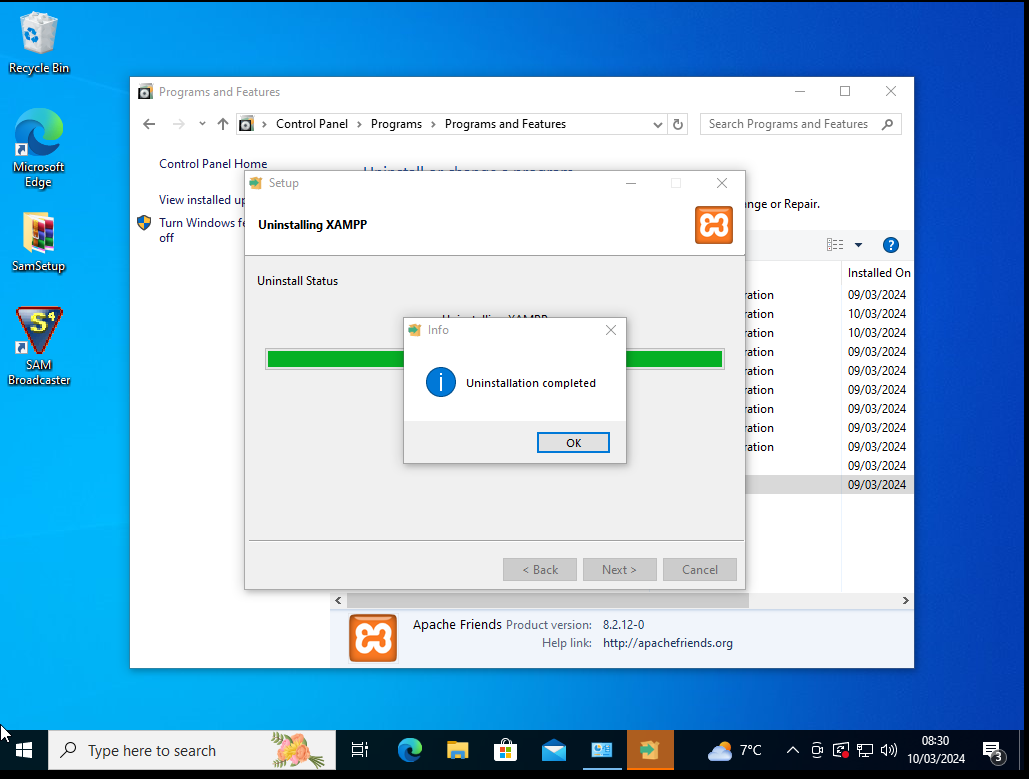
Hit OK
Now we can use the top of the Programs And Features Window and Type in the Address Bar
-> IF You don't want to use this method you need to open up "This PC" And Use the Address Bar from there.
%LOCALAPPDATA%\VirtualStore\Program Files (x86)
This should bring up a list of folders; look for SpacialAudio (in my case i've only got the one folder which is the one we need
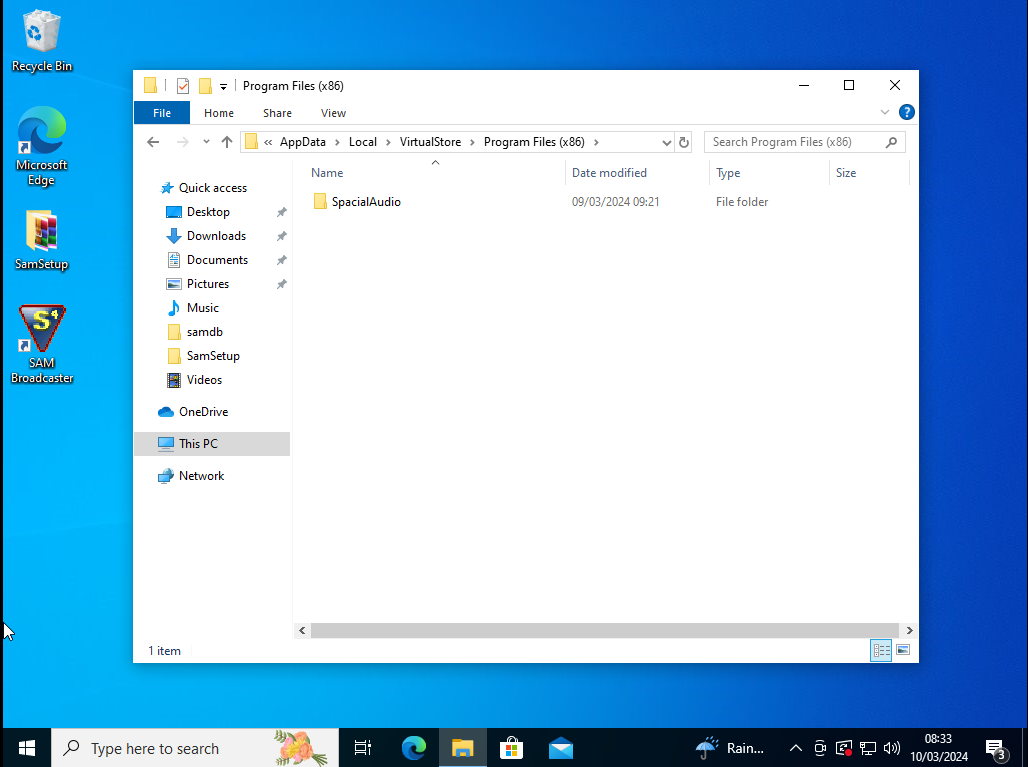
Now DELETE the folder SpacialAudio. SOMETIMES however, SpacialAudio is in %LOCALAPPDATA% DOUBLE CHECK THERE!!
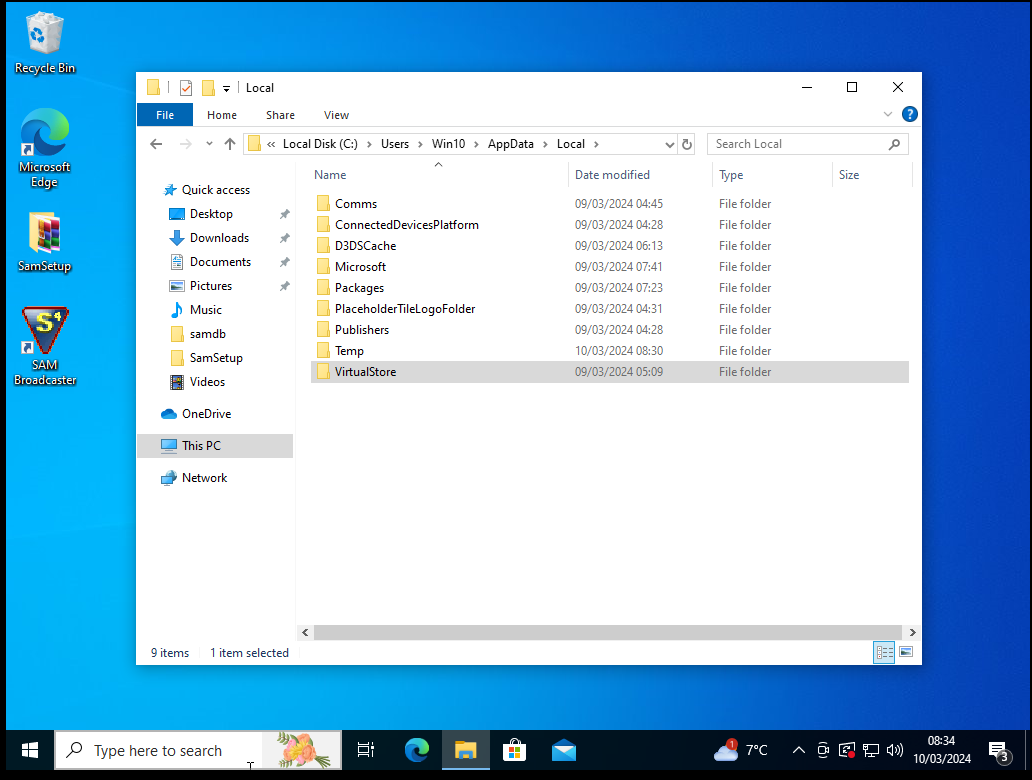
IF SpacialAudio is there: Delete it.
Now Go back to: https://broadcasturself.com/forum/index.php?topic=5.msg5;topicseen#new
OR Follow the guides there! If Done correctly you should have to redo the whole setup from basic (the only exception is Net Framework since we cannot remove that easily!)
You can do this using the settings tab of Windows - or Use Revo
(side note: If you're an older person who remembers Control Panel we can still use that - to bring that up you would want to press START BUTTON and search for Control Panel or Start Button + R (pops up Run Command)!)
https://www.revouninstaller.com/start-freeware-download/
Revo will scan for all previously installed items. Revo Uninstaller is FREE
-> BUT THIS SOFTWARE DOES NOT FULLY REMOVE SAM BROADCASTER.
For This guide I'll be using Control Panel Route: This Means We Need Run So Start + R
In the Box (Currently says Services.msc YOURS WILL BE BLANK (hopefully)) Type in Control And hit OK
Under Programs - Uninstall a Program Option (Under Category option)
You should have more applications than this, if you use this on a daily bases. BUT if its like mine; you should look for SAM Broadcaster (remove only) Then Click on it and click on Uninstall/Change
UAC Might Pop up (UAC Is User Account Control) - Hit YES
Then Hit Uninstall
Hit Yes
Then Hit Close. It Should Return to Programs And Features; Select XAMPP - Then Uninstall/Change
UAC Might Appear again! Hit Yes!
Hit YES.
Hit Yes....Now wait for it to complete
The Jack Daniels looks promising right now.....all the need to destroy some braincells while we're waiting for removal. Sometimes, though XAMPP will crash a little, which means we've gotta close this:
IF It reappears again close it again for it to continue....Man this Jack Daniels is nice....a little strong but hey its Jack!
Now we need to do a little clean up with the Sam Broadcaster; As mentioned earlier in the guide this requires to go into %LOCALAPPDATA%, BUT its best to wait until the "Setup" of Xampp is done so it appears with this:
Hit OK
Now we can use the top of the Programs And Features Window and Type in the Address Bar
-> IF You don't want to use this method you need to open up "This PC" And Use the Address Bar from there.
%LOCALAPPDATA%\VirtualStore\Program Files (x86)
This should bring up a list of folders; look for SpacialAudio (in my case i've only got the one folder which is the one we need
Now DELETE the folder SpacialAudio. SOMETIMES however, SpacialAudio is in %LOCALAPPDATA% DOUBLE CHECK THERE!!
IF SpacialAudio is there: Delete it.
Now Go back to: https://broadcasturself.com/forum/index.php?topic=5.msg5;topicseen#new
OR Follow the guides there! If Done correctly you should have to redo the whole setup from basic (the only exception is Net Framework since we cannot remove that easily!)
#13
Sam Broadcaster / Setup SamBroadcaster
Last post by DeadlyDeathAngel - May 24, 2024, 12:51 PMNOTE: This was done via Virtual Machine Your setup may vary!!!
Also it was a FRESHLY INSTALLED WINDOWS 10 VIRUTAL MACHINE!!
THIS IS A FRESH INSTALL OF WINDOWS 10 - THEREFORE ALL SETTINGS ARE NORMAL
-> THIS MEANS THERE IS NO ALTERNATIVES.
-> IT ALSO MEANS THE SETUP IS FOLLOWED!
To Setup Sam Broadcaster We Need A Few Internet Files;
Video Of this Guide:
Downloads:
https://www.broadcasturself.com/forum/sam/samdb.zip
https://www.broadcasturself.com/forum/sam/New_AutoSetup.rar
https://www.focusgameonline.com/SamBroadcaster/DJ_Request.rar
1: Download Xampp from: https://sourceforge.net/projects/xampp/files/XAMPP%20Windows/8.2.4/xampp-windows-x64-8.2.4-0-VS16-installer.exe
-> Check the Version numbers: Version provided DO NOT UPGRADE! 8.2.4.0 VS16.
2: Run The Xampp Setup (It'll alert you for Admin rights)
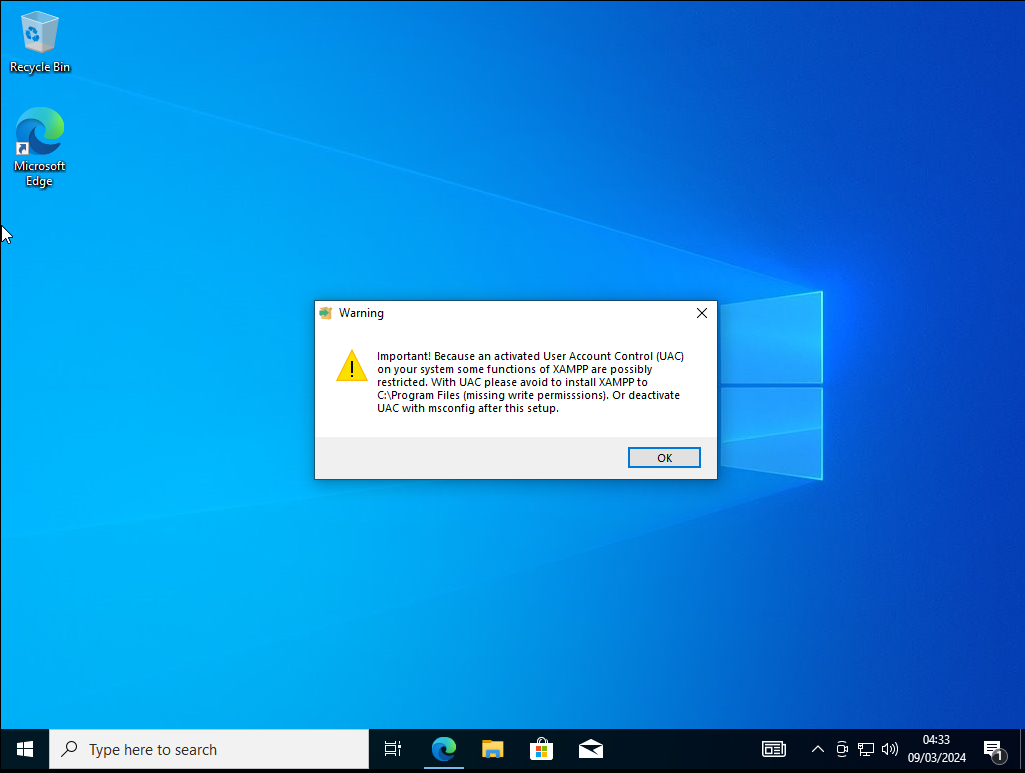
-> Click OK
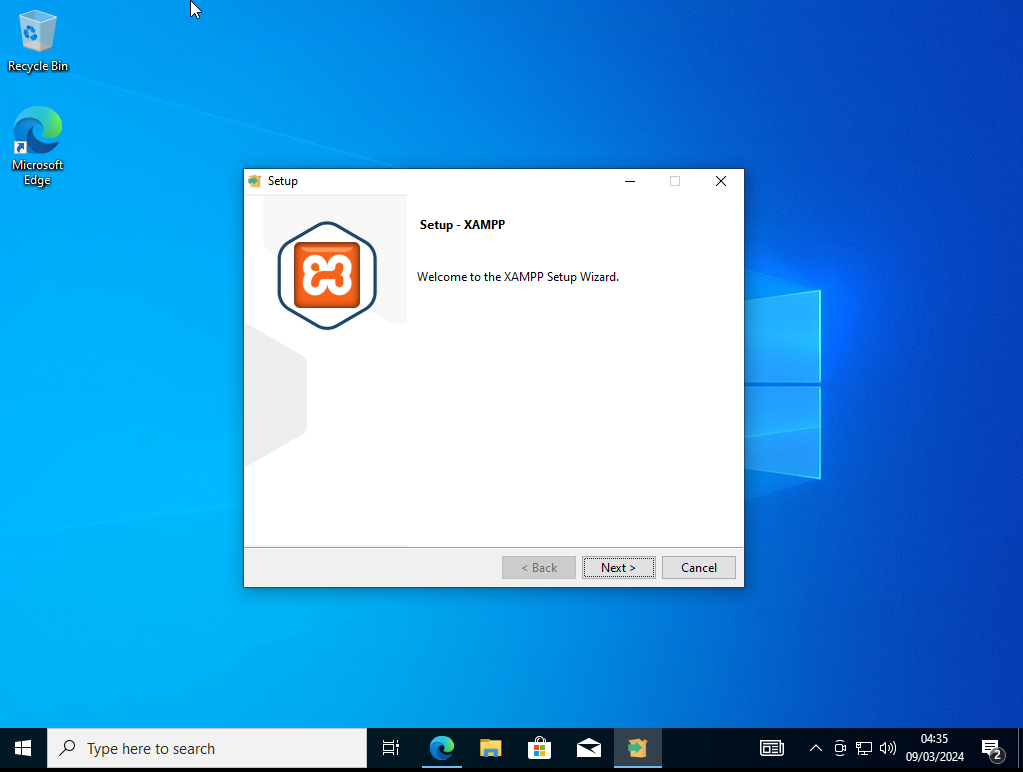
-> Click Next
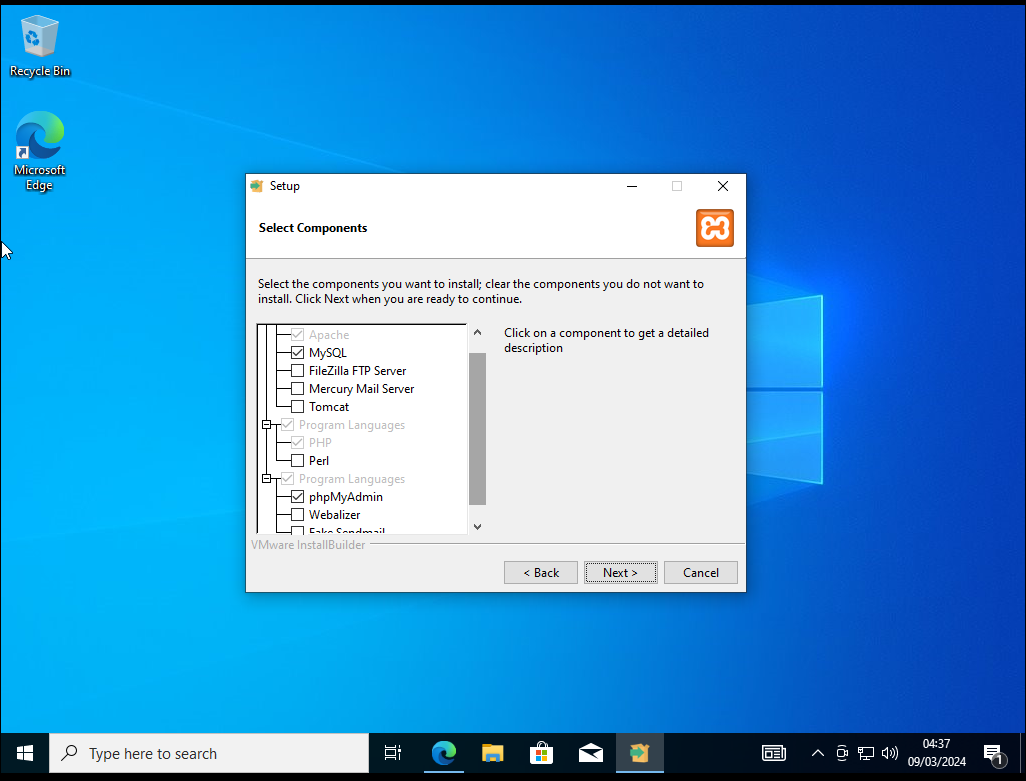
-> Untick the following things
> FileZilla FTP Server
> Mercury Mail Server
> Tomcat
> Perl
> Webalizer
> Fake Sendmail
-> Then Hit NEXT
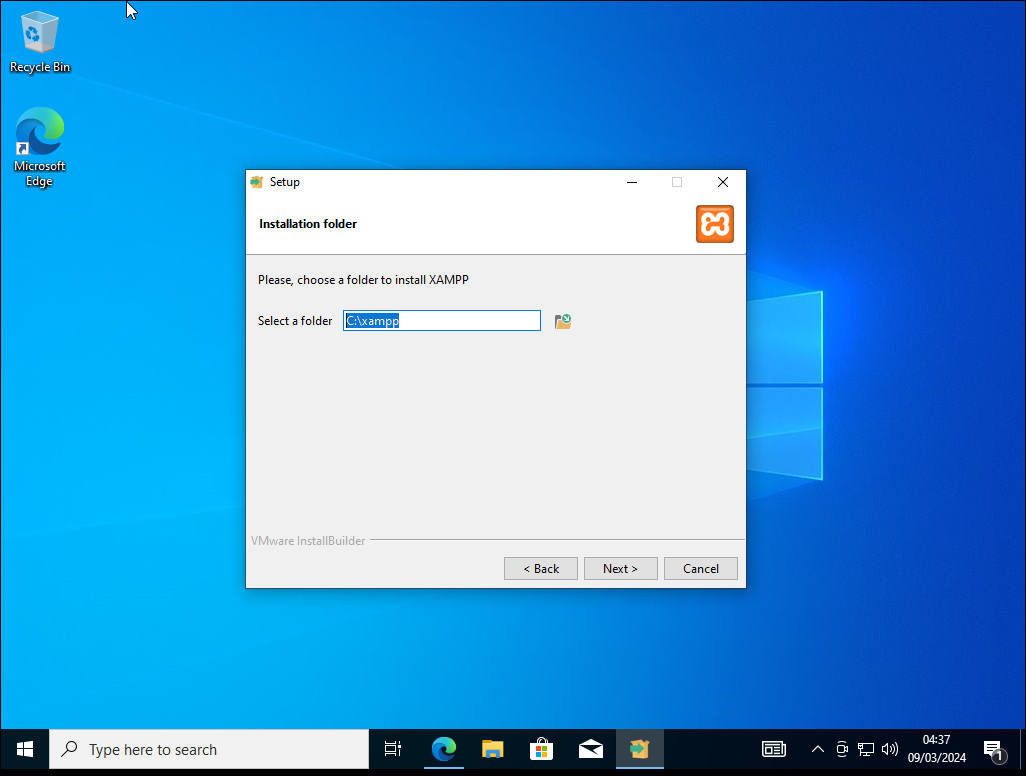
-> Leave The Default Folder - Hit Next
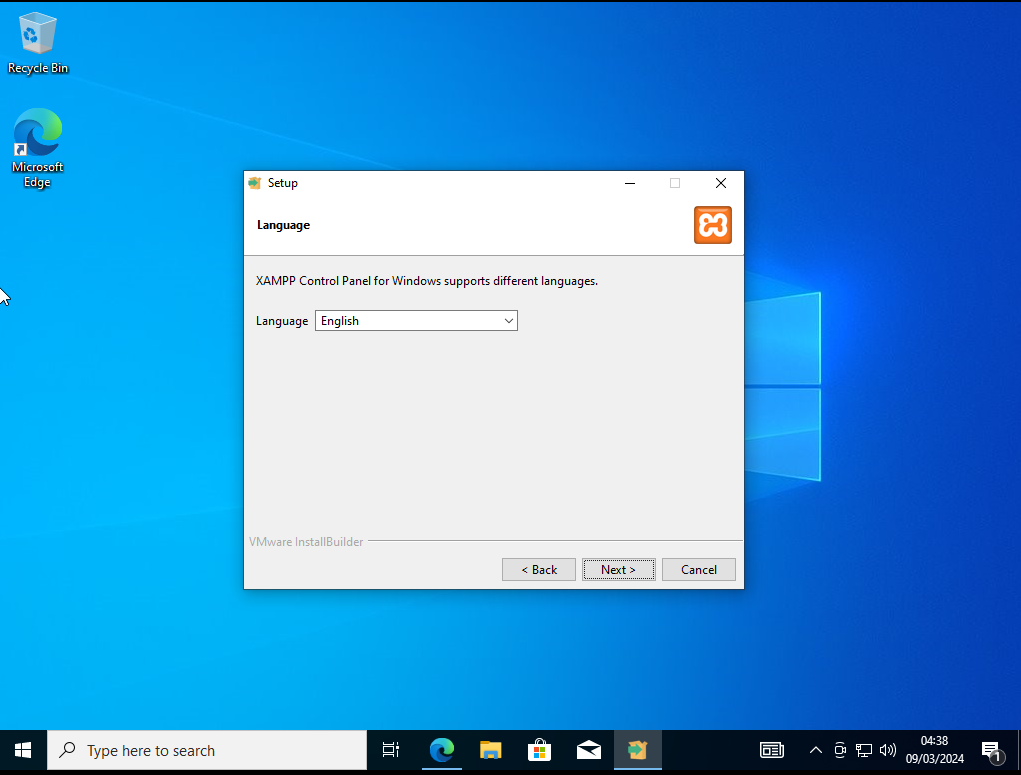
-> If You understand this guide so far the language is setup correctly - Hit Next
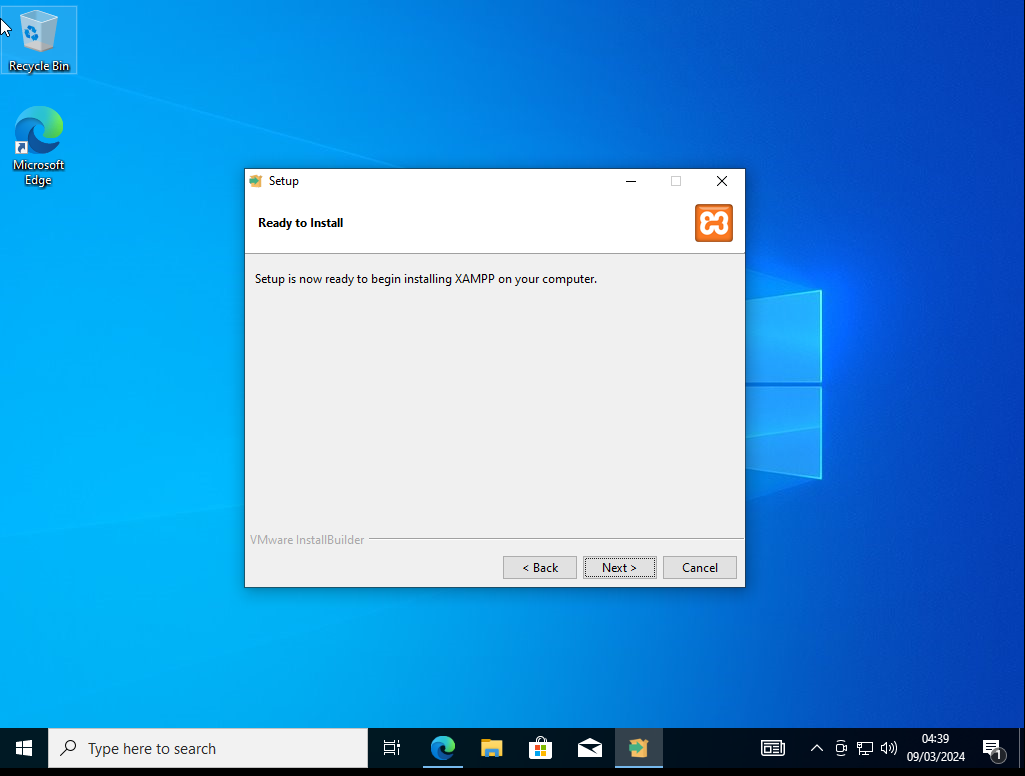
-> Hit Next
GRAB A Coffee! mmm Coffee! or touch some weed, smoke a bong whatever you decide to do to pass the time!
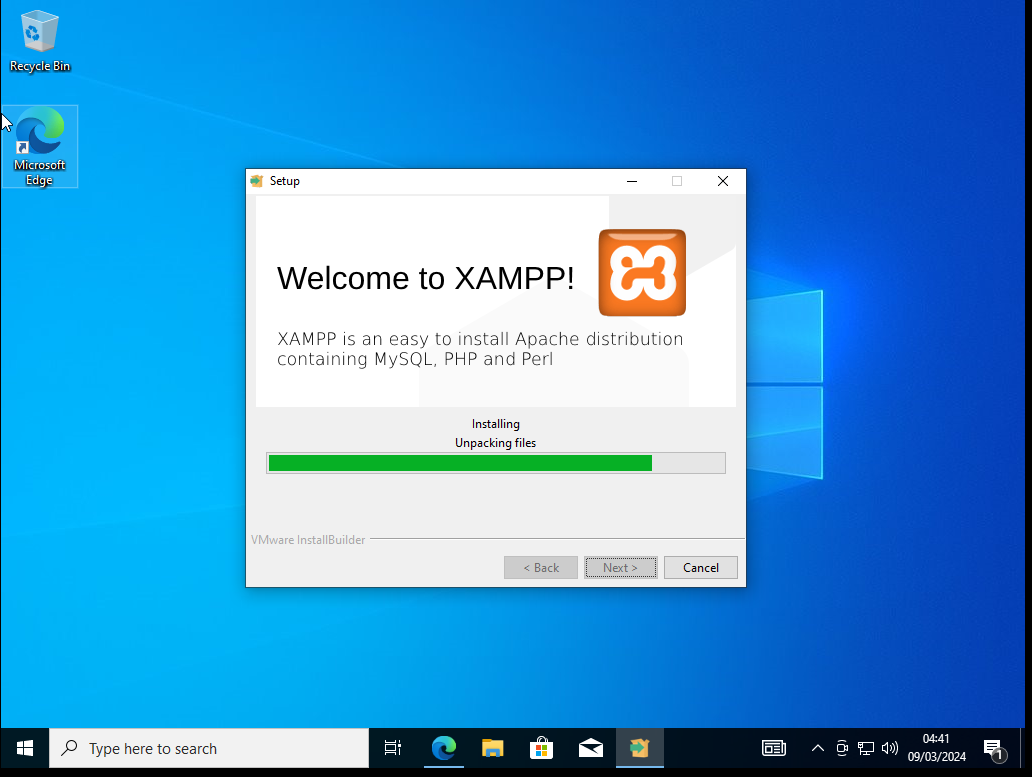
Enjoy the setup guide! Drink some Jack - or whatever you want to drink!
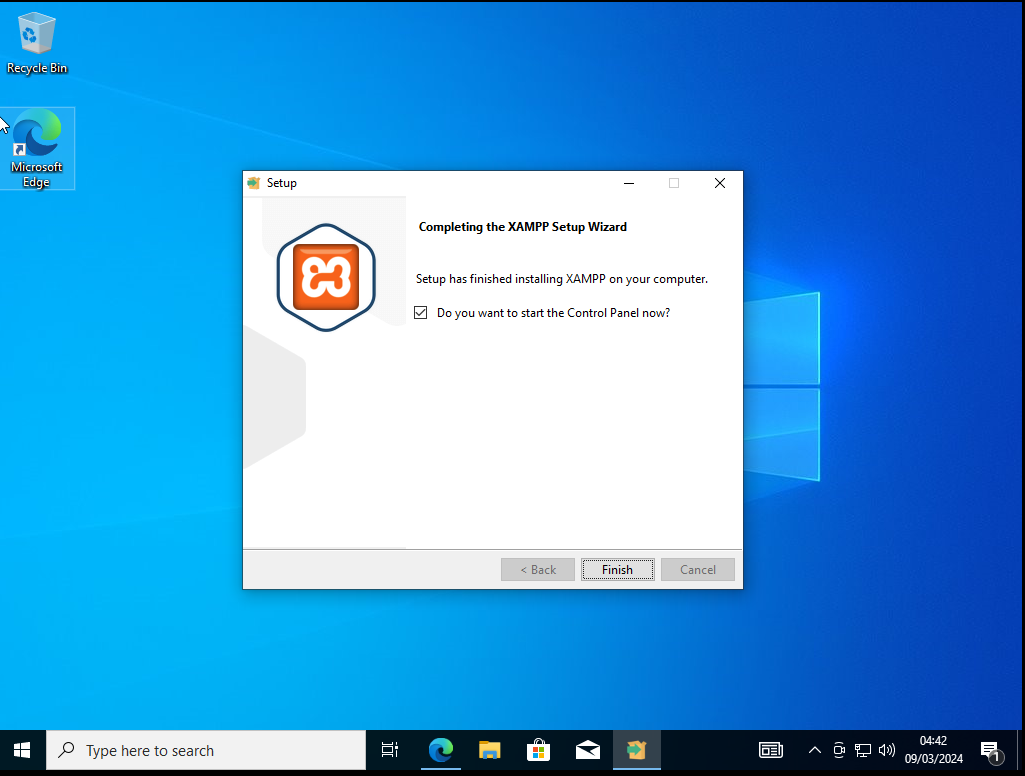
-> AFTER installed UNTICK THE box!

-> Hit Next!
3: Open "This PC"
-> Open Local Disk (C:)
-> Open xampp
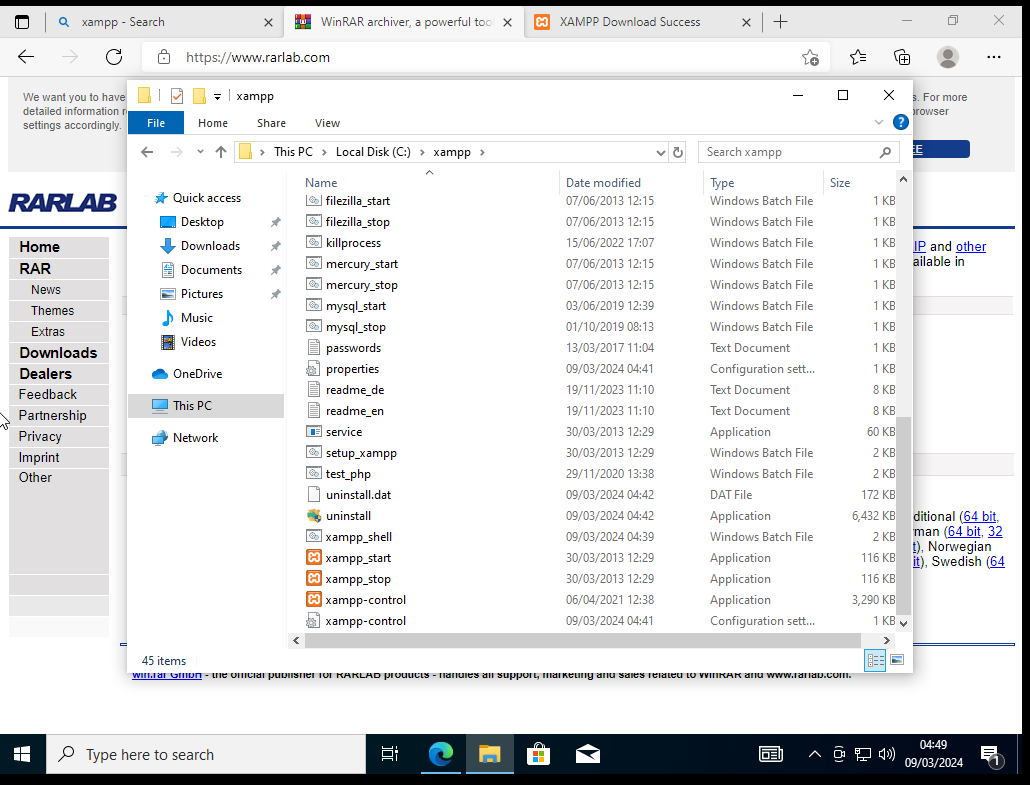
-> Scroll Down to xampp-control
-> Right click on xampp-control
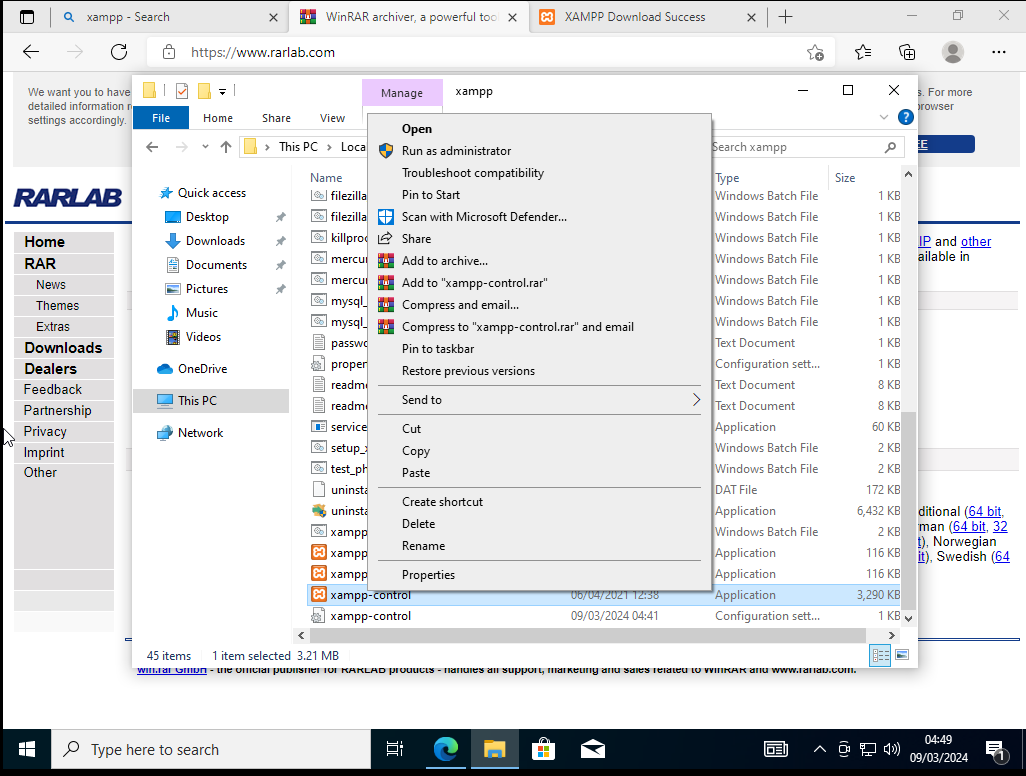
-> Run As Administrator
--- UAC might pop up click YES
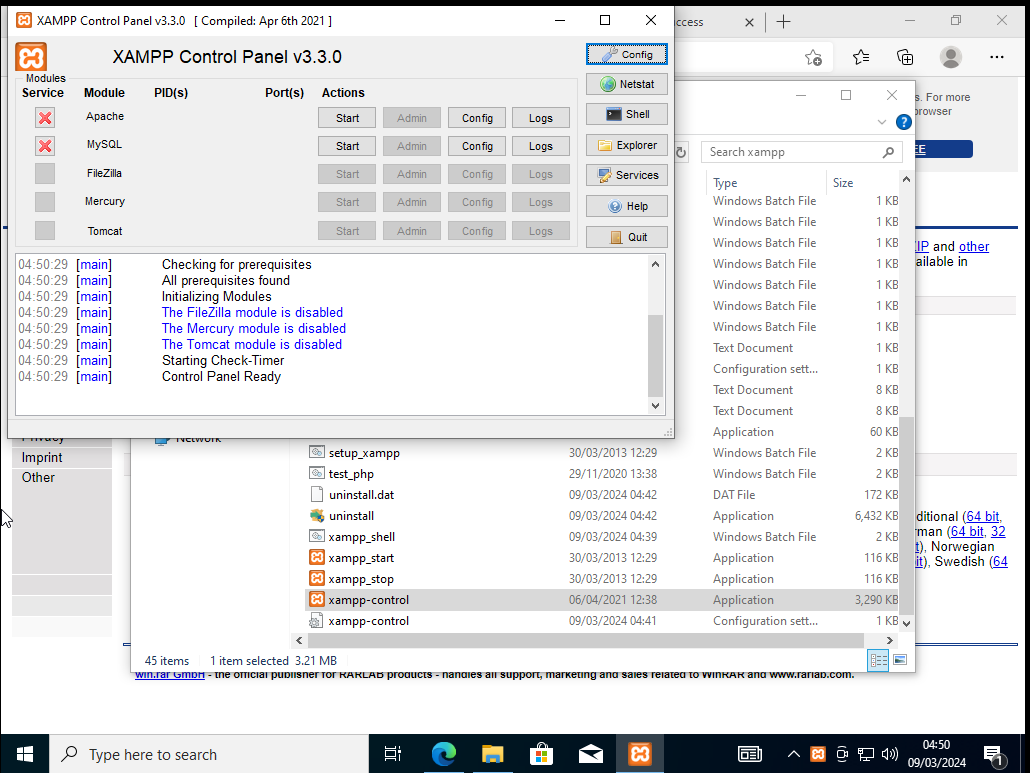
-> Hit the X button BY MySQL
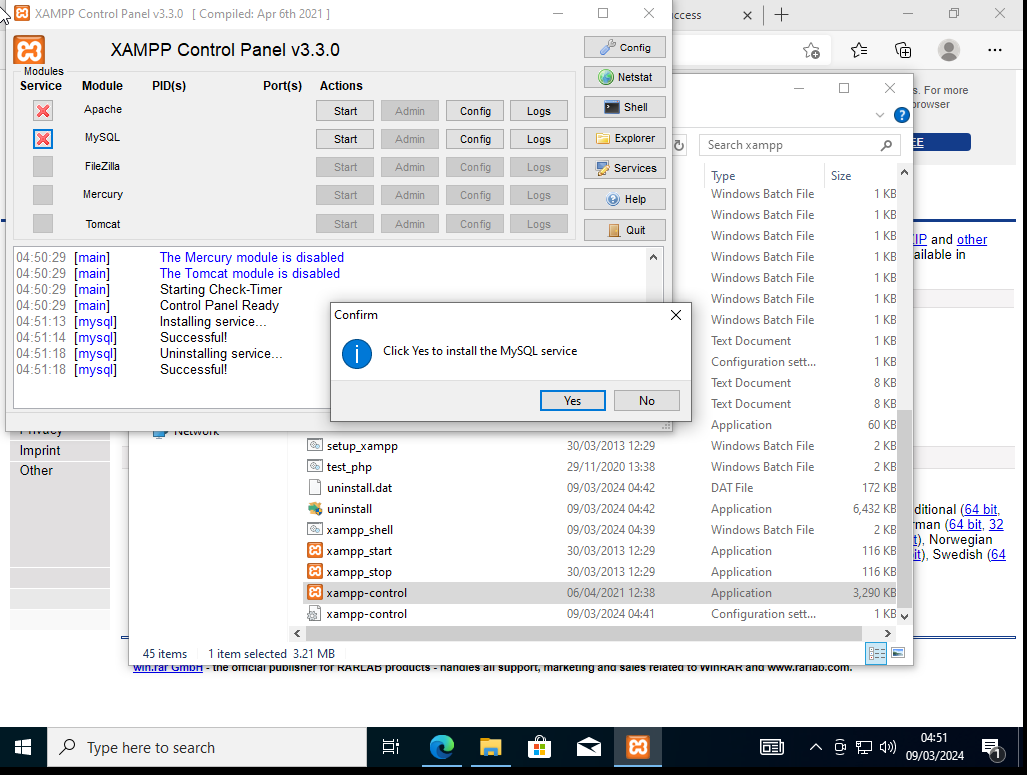
-> Hit YES
-> Start Apache AND MySQL
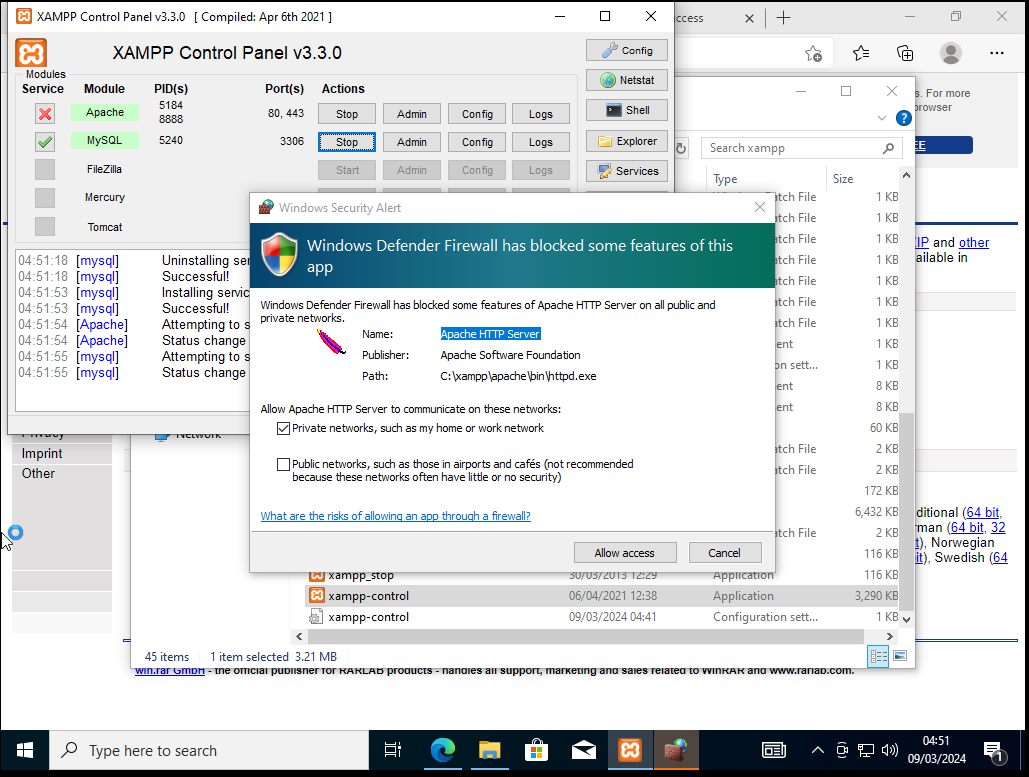
-> Hit Allow Access
4: Now Open Web Browser And In The Address Bar Type in
-> localhost/phpmyadmin
-> Hit Databases
-> In The field of Database name type in: SamDB
-> EACH DATABASE IS CASE SENSTIVIE
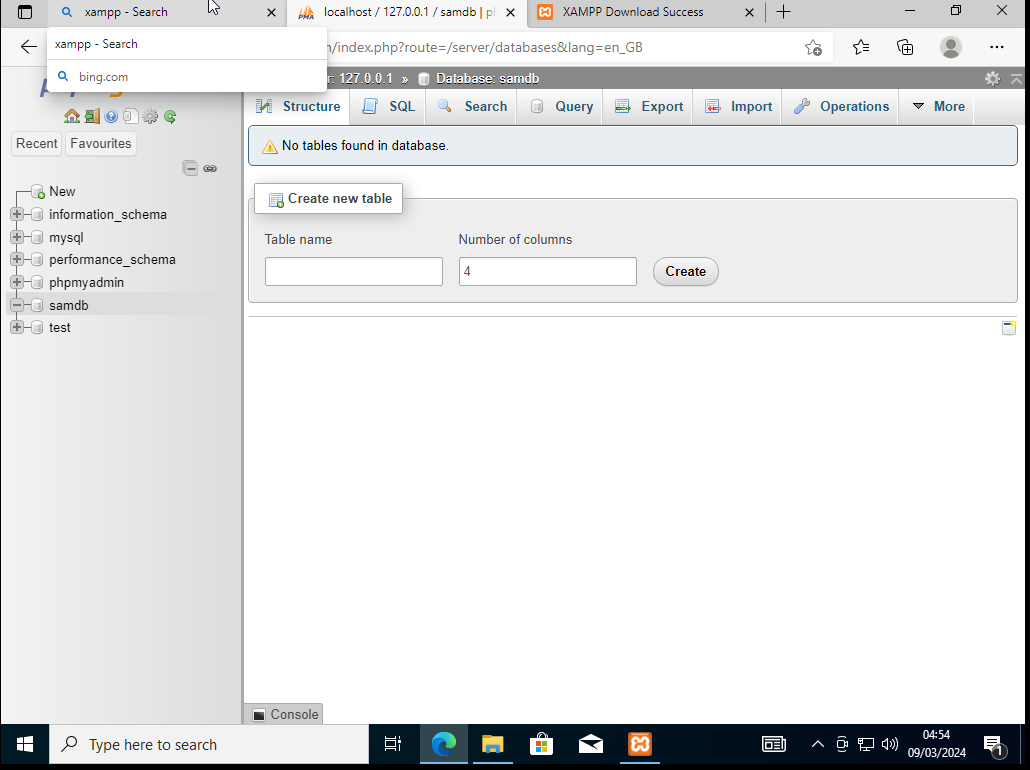
-> Look it says samdb (lower case) & direct you to Tables page click on import
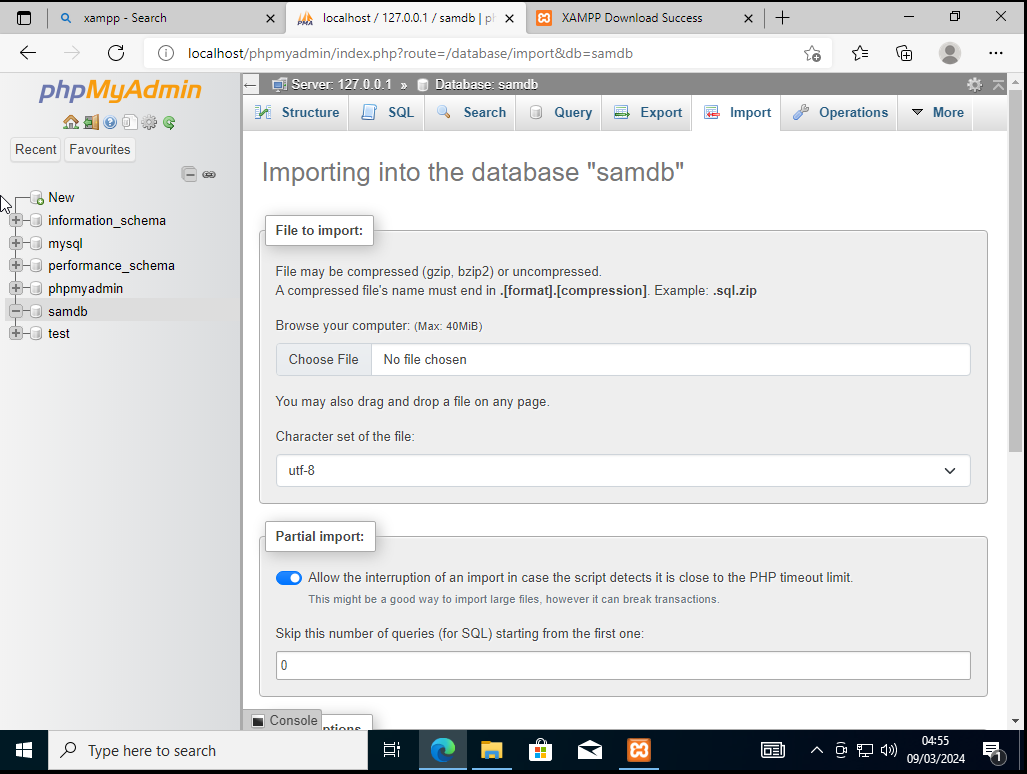
-> Click on Choose File
-> Grab samdb from your downloads (where you downloaded a clean database from)
-> It is the file format .sql (if you downloaded offical stuff from servers)
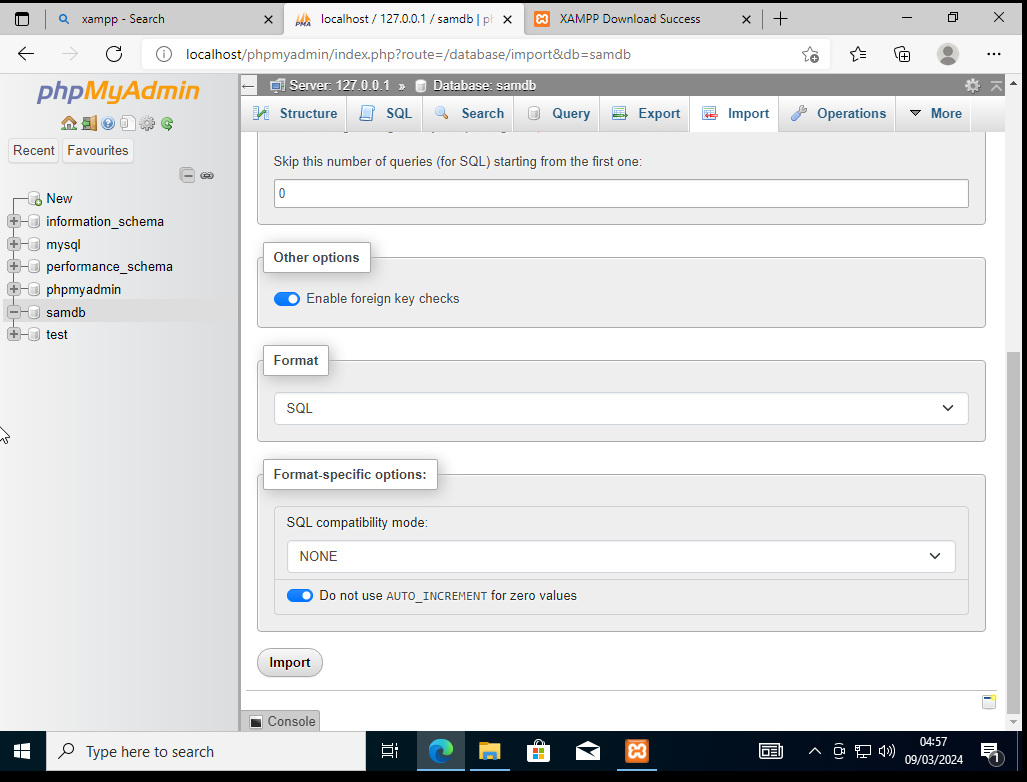
-> Scroll Down & Click Import
IF you've done everything correctly You should see the following Screenshot
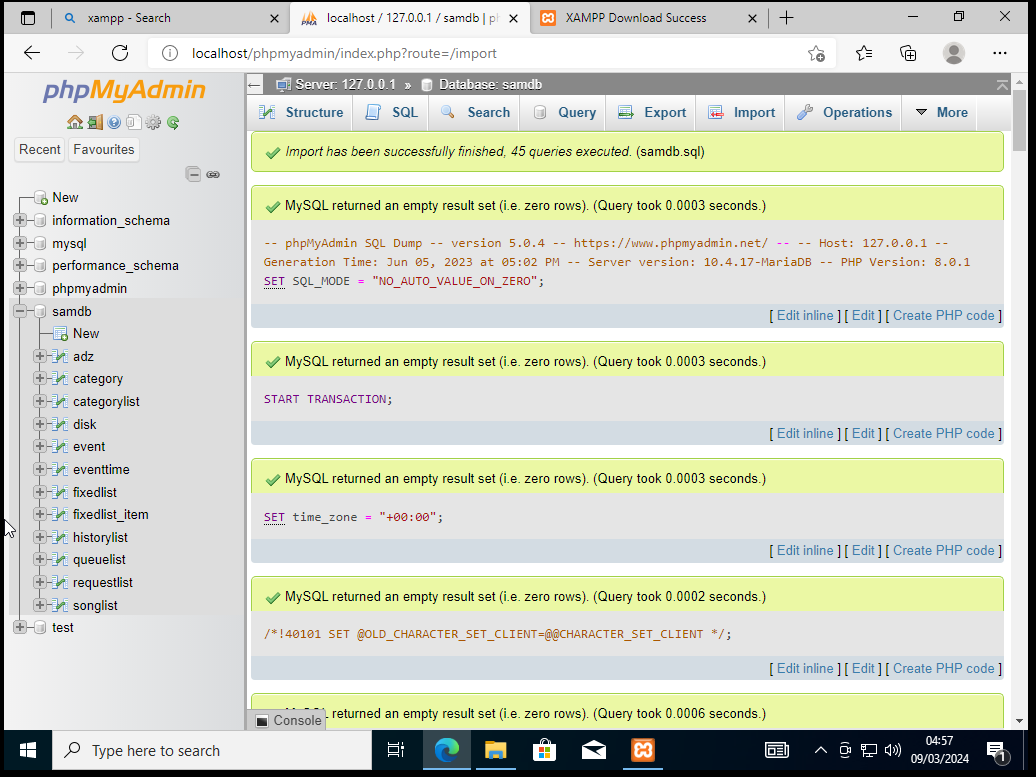
5: Download Your Official Copy of Sam Broadcaster (We Over At FocusGameOnline/StormBoltOnline/DJ Requester)
-> DO NOT ENDORSE PIRACY!!!
-> Run Sam Setup Program
- UAC Click Yes
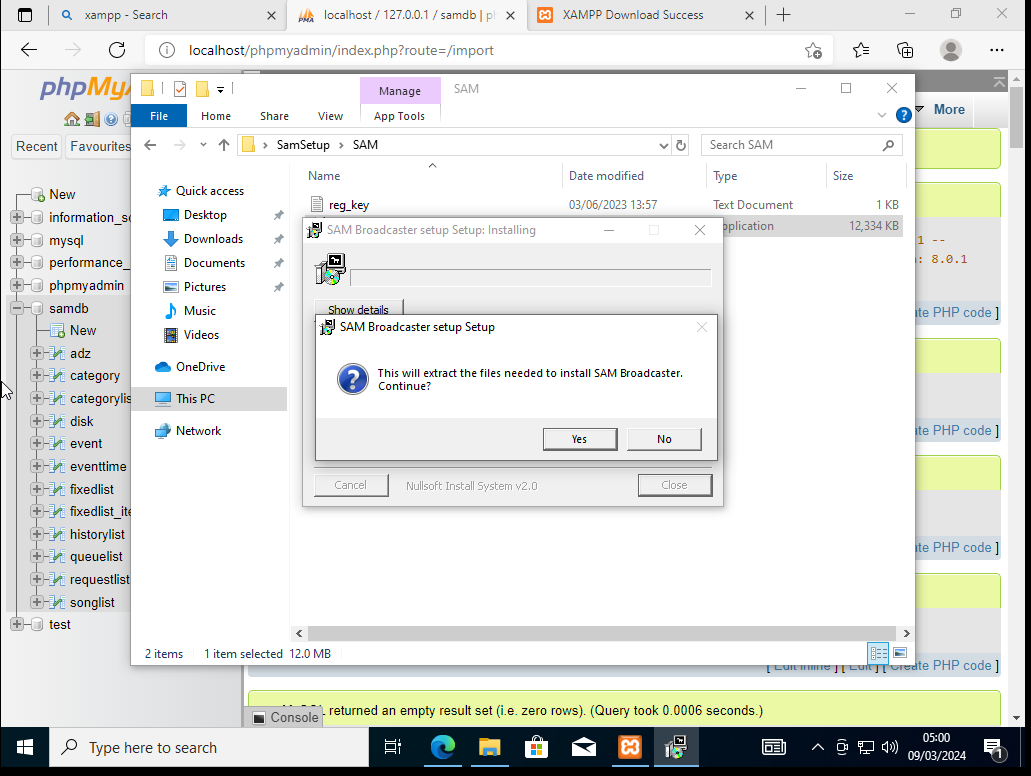
-> Hit Yes
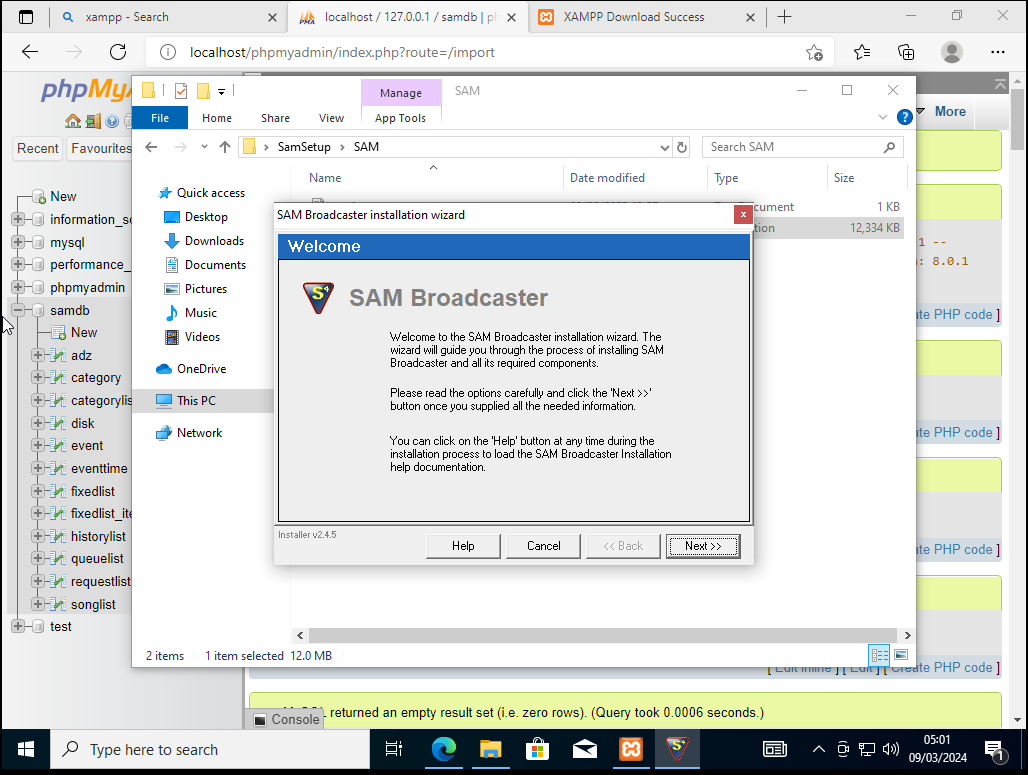
-> Hit Next
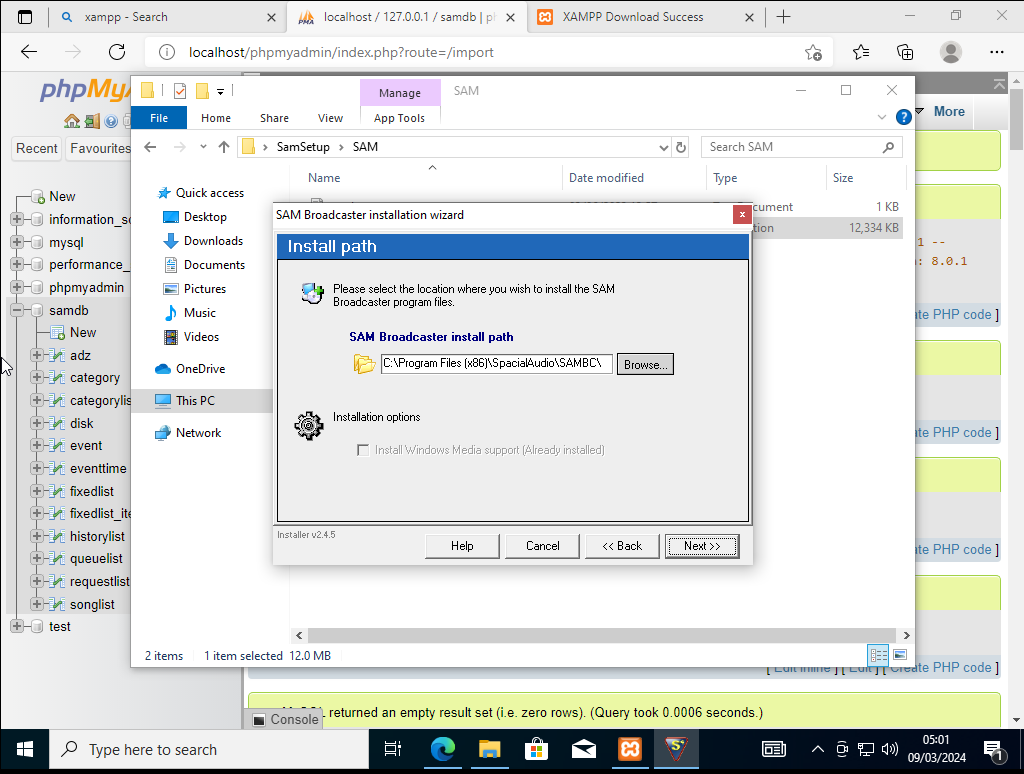
-> Hit Accept
-> Hit Next
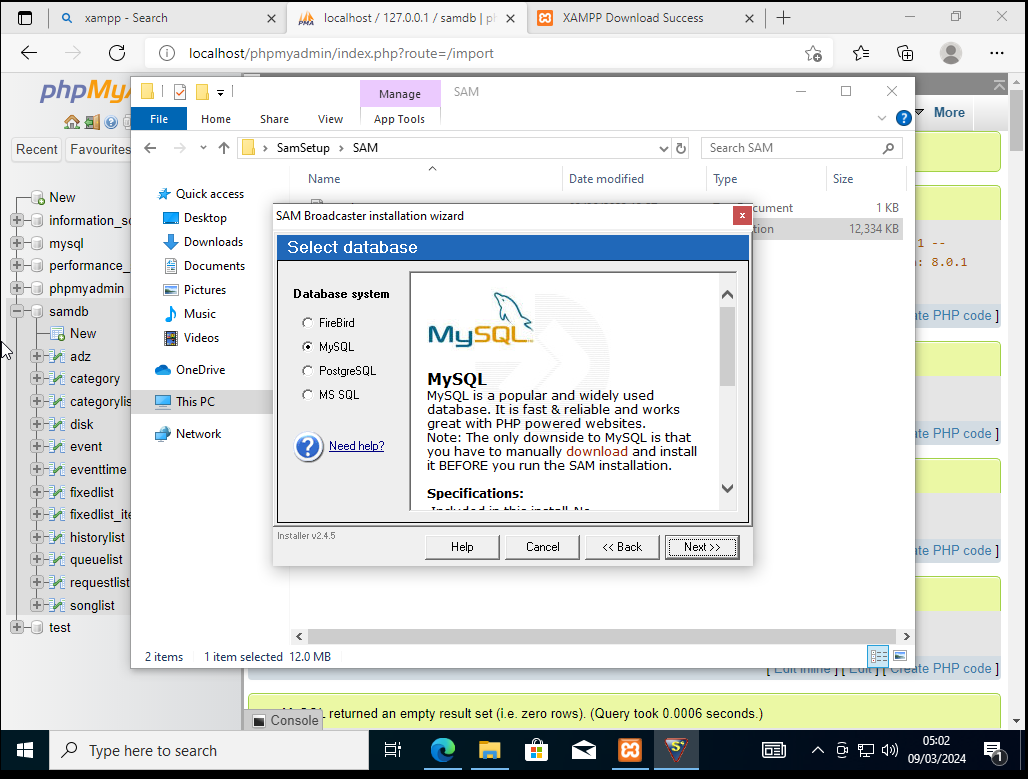
-> We Are Using MySQL So Make Sure Bubble is in MySQL And hit Next
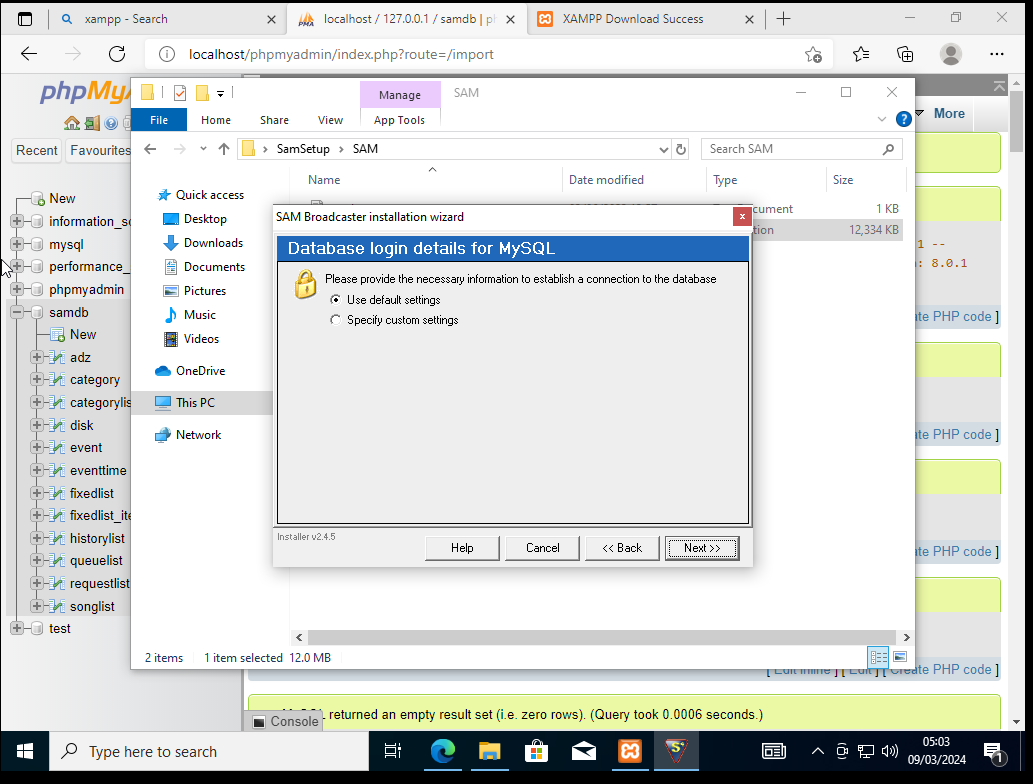
-> Change To Specify Custom SETTINGS
-> On The Right Hand Side You have Database Login Details LEAVE THE FIRST TWO BOXES ALONE
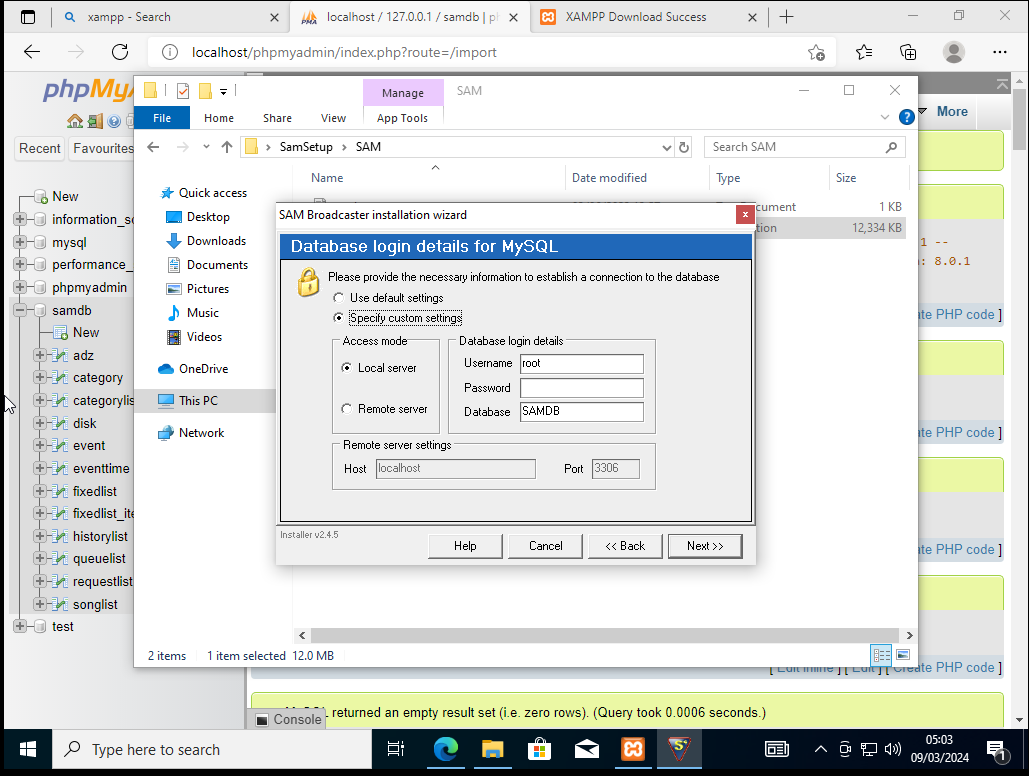
-> Remember Databse we made called SamDB and it lowered case letters we put in
-> samdb
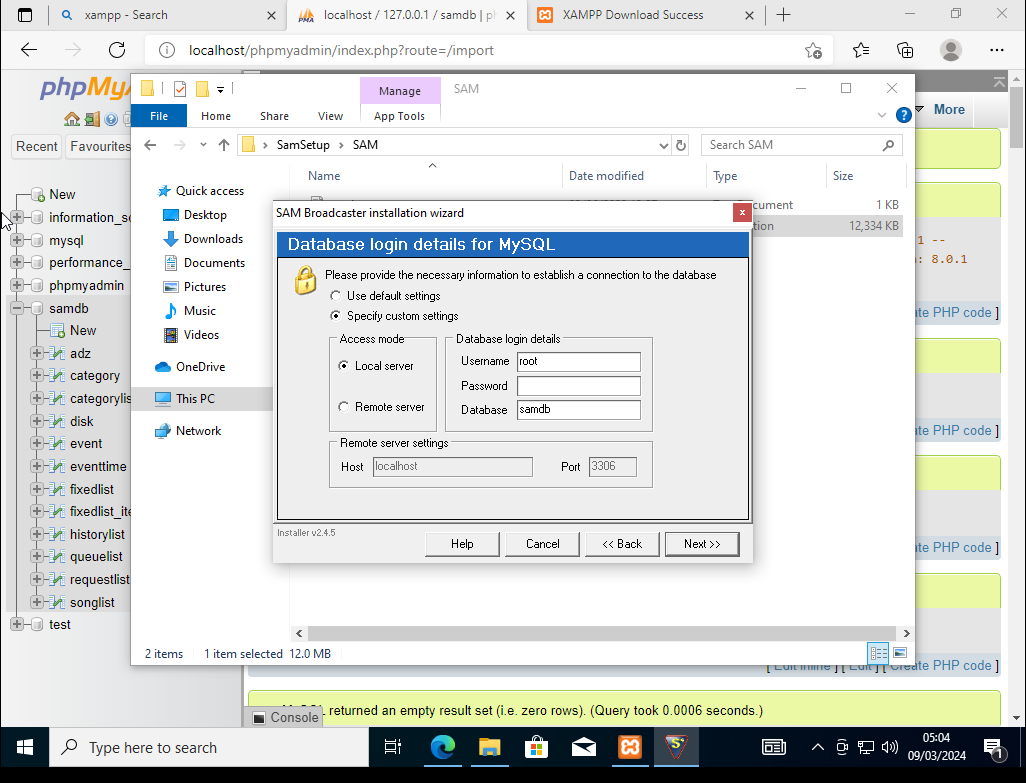
-> HIT NEXT
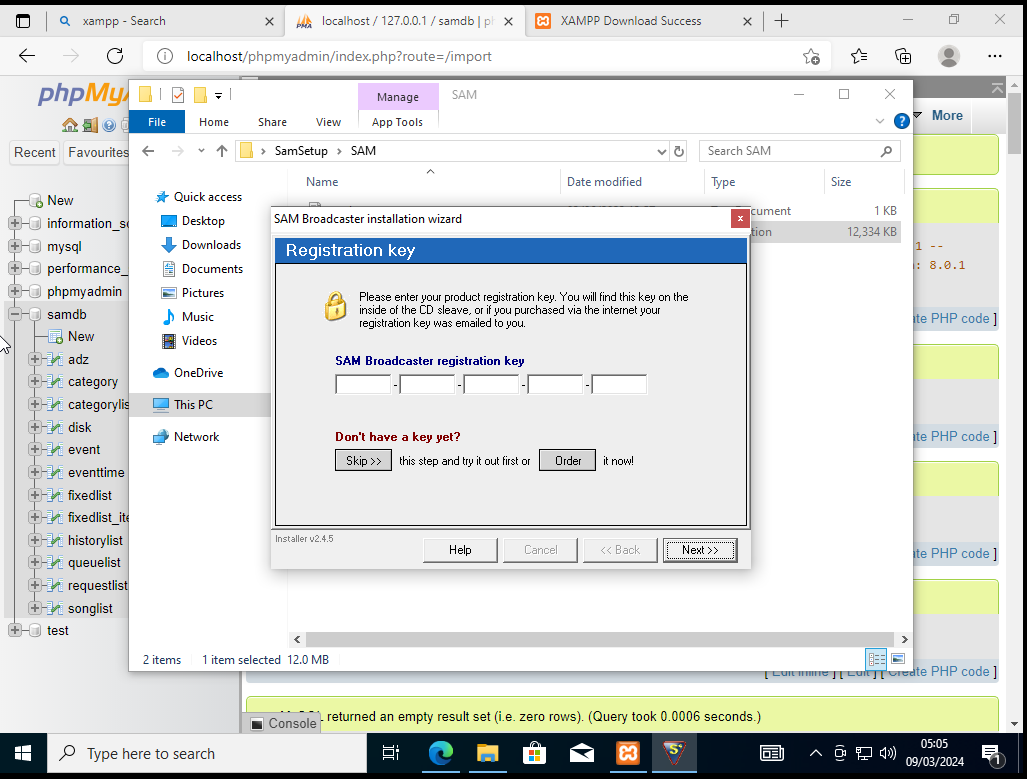
-> You Can Put your License Key in here! (You should buy your copy!)
-> IF you've got a product key enter it then hit next
-> IF you're trying the product hit Skip>>
-> Untick Visit
OPTIONAL -> Untick Run but this is optional!
But We're going to need to Run SamBroadcaster FIRST
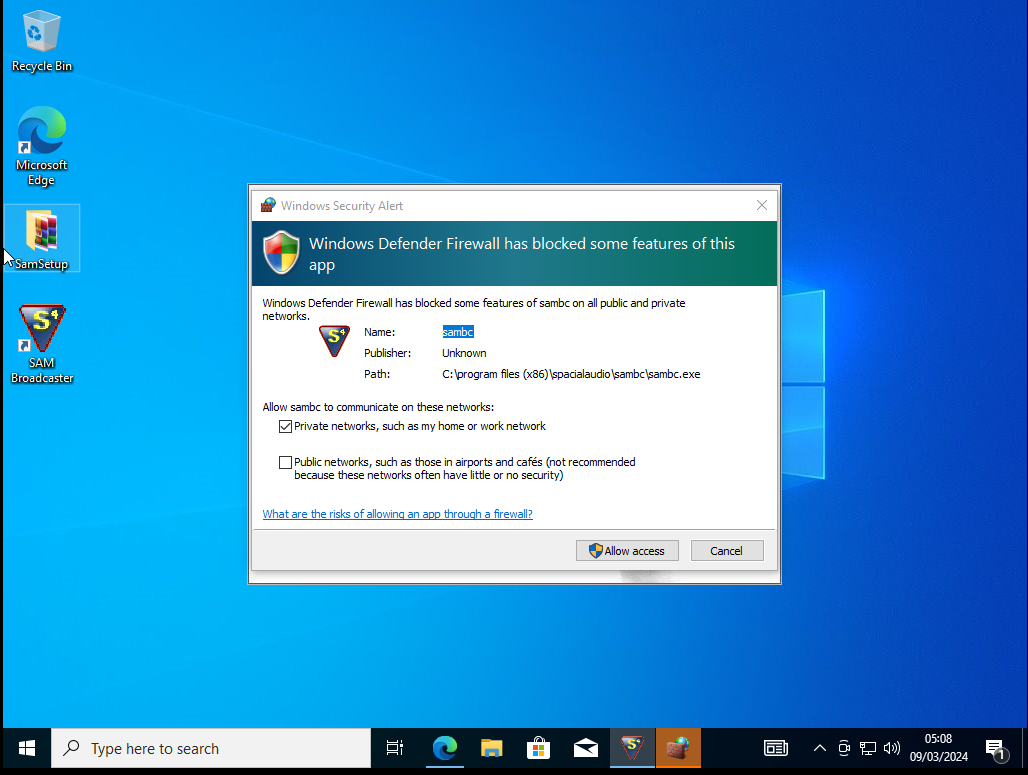
-> Hit Allow Access
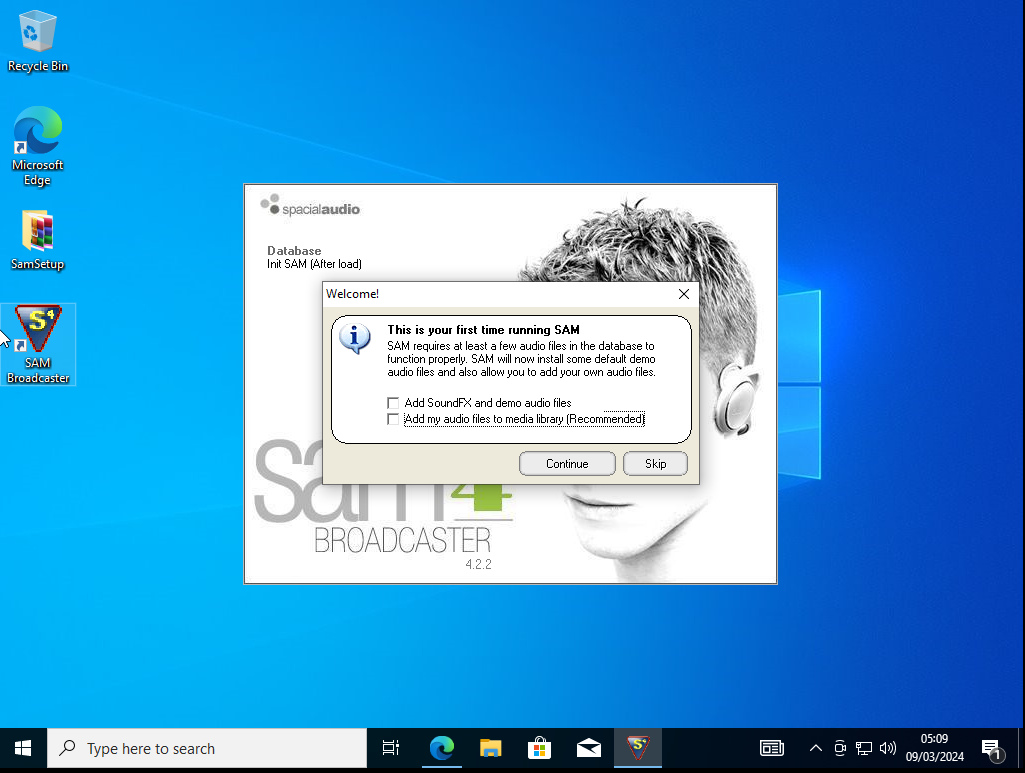
-> Untick Add SoundFX and demo audio files
-> Untick Add my audio files to media library (recommended)
-> Hit Continue
-> File -> Exit
It needs to be closed for autosetup!
AUTOSETUP CONFIGURATIONS:
AUTO SETUP REQUIRES Encoder setup
So To Do this we open Encoder1.ini in the folder
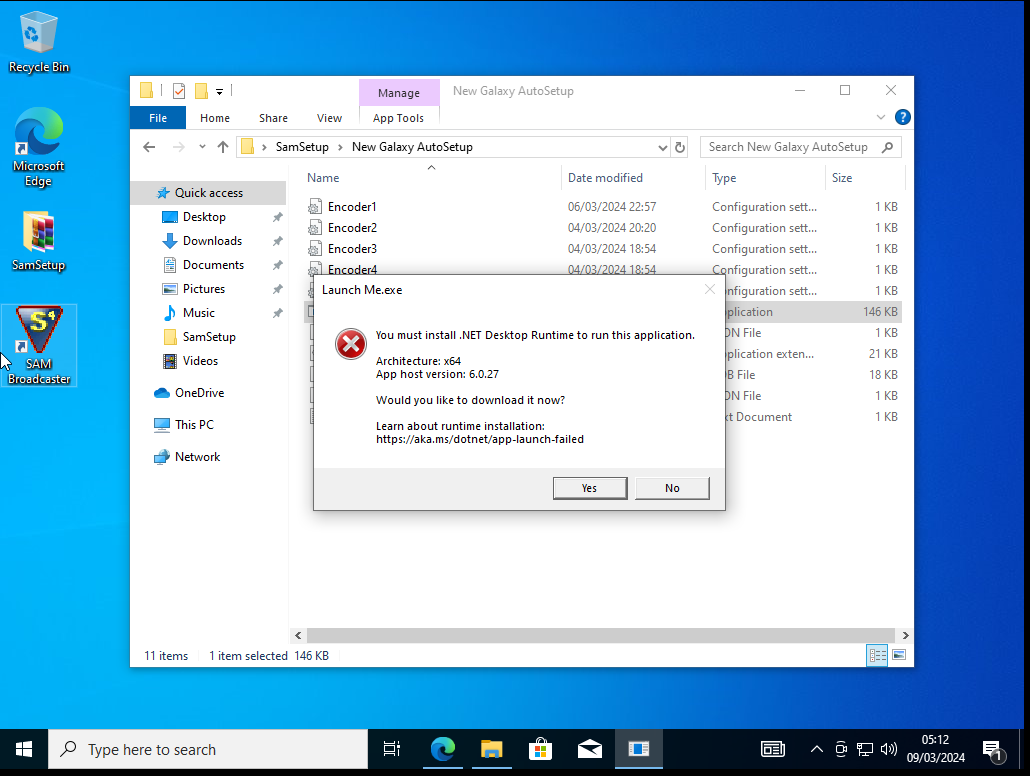
-> Hit YES (Net Framework from Microsoft.com!)
-> Launch the recently downloaded windowsdesktop-runtime
-> Install
<UAC - Hit YES>
-> Close
-> Then Hit Launch Me.exe
-> Then Right Click and Launch Me as Administrator
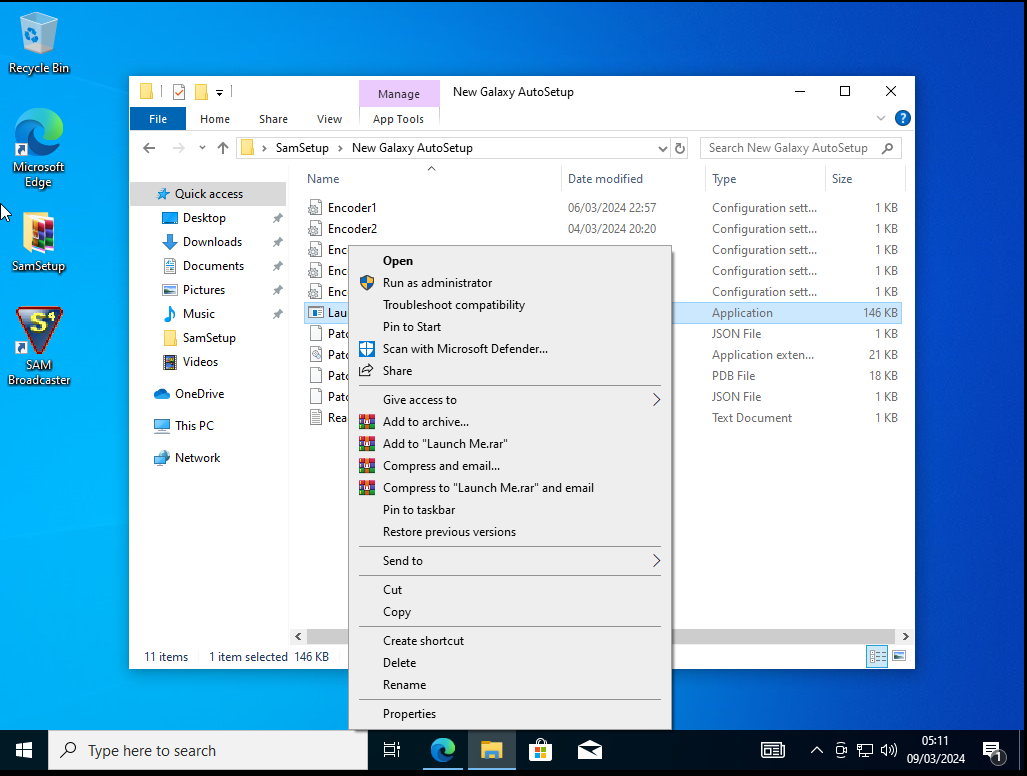
<UAC - Hit Yes>
-> Launch Sam Broadcaster and visit Desktop B
-> In The Encoders Window You should see The Encoders Automatically Installed!
That Is Now Setup - Completely! Sam Broadcaster has Now been FULLY INSTALLED
Also it was a FRESHLY INSTALLED WINDOWS 10 VIRUTAL MACHINE!!
THIS IS A FRESH INSTALL OF WINDOWS 10 - THEREFORE ALL SETTINGS ARE NORMAL
-> THIS MEANS THERE IS NO ALTERNATIVES.
-> IT ALSO MEANS THE SETUP IS FOLLOWED!
To Setup Sam Broadcaster We Need A Few Internet Files;
Video Of this Guide:
Downloads:
https://www.broadcasturself.com/forum/sam/samdb.zip
https://www.broadcasturself.com/forum/sam/New_AutoSetup.rar
https://www.focusgameonline.com/SamBroadcaster/DJ_Request.rar
1: Download Xampp from: https://sourceforge.net/projects/xampp/files/XAMPP%20Windows/8.2.4/xampp-windows-x64-8.2.4-0-VS16-installer.exe
-> Check the Version numbers: Version provided DO NOT UPGRADE! 8.2.4.0 VS16.
2: Run The Xampp Setup (It'll alert you for Admin rights)
-> Click OK
-> Click Next
-> Untick the following things
> FileZilla FTP Server
> Mercury Mail Server
> Tomcat
> Perl
> Webalizer
> Fake Sendmail
-> Then Hit NEXT
-> Leave The Default Folder - Hit Next
-> If You understand this guide so far the language is setup correctly - Hit Next
-> Hit Next
GRAB A Coffee! mmm Coffee! or touch some weed, smoke a bong whatever you decide to do to pass the time!
Enjoy the setup guide! Drink some Jack - or whatever you want to drink!
-> AFTER installed UNTICK THE box!
-> Hit Next!
3: Open "This PC"
-> Open Local Disk (C:)
-> Open xampp
-> Scroll Down to xampp-control
-> Right click on xampp-control
-> Run As Administrator
--- UAC might pop up click YES
-> Hit the X button BY MySQL
-> Hit YES
-> Start Apache AND MySQL
-> Hit Allow Access
4: Now Open Web Browser And In The Address Bar Type in
-> localhost/phpmyadmin
-> Hit Databases
-> In The field of Database name type in: SamDB
-> EACH DATABASE IS CASE SENSTIVIE
-> Look it says samdb (lower case) & direct you to Tables page click on import
-> Click on Choose File
-> Grab samdb from your downloads (where you downloaded a clean database from)
-> It is the file format .sql (if you downloaded offical stuff from servers)
-> Scroll Down & Click Import
IF you've done everything correctly You should see the following Screenshot
5: Download Your Official Copy of Sam Broadcaster (We Over At FocusGameOnline/StormBoltOnline/DJ Requester)
-> DO NOT ENDORSE PIRACY!!!
-> Run Sam Setup Program
- UAC Click Yes
-> Hit Yes
-> Hit Next
-> Hit Accept
-> Hit Next
-> We Are Using MySQL So Make Sure Bubble is in MySQL And hit Next
-> Change To Specify Custom SETTINGS
-> On The Right Hand Side You have Database Login Details LEAVE THE FIRST TWO BOXES ALONE
-> Remember Databse we made called SamDB and it lowered case letters we put in
-> samdb
-> HIT NEXT
-> You Can Put your License Key in here! (You should buy your copy!)
-> IF you've got a product key enter it then hit next
-> IF you're trying the product hit Skip>>
-> Untick Visit
OPTIONAL -> Untick Run but this is optional!
But We're going to need to Run SamBroadcaster FIRST
-> Hit Allow Access
-> Untick Add SoundFX and demo audio files
-> Untick Add my audio files to media library (recommended)
-> Hit Continue
-> File -> Exit
It needs to be closed for autosetup!
AUTOSETUP CONFIGURATIONS:
AUTO SETUP REQUIRES Encoder setup
So To Do this we open Encoder1.ini in the folder
-> Hit YES (Net Framework from Microsoft.com!)
-> Launch the recently downloaded windowsdesktop-runtime
-> Install
<UAC - Hit YES>
-> Close
-> Then Hit Launch Me.exe
-> Then Right Click and Launch Me as Administrator
<UAC - Hit Yes>
-> Launch Sam Broadcaster and visit Desktop B
-> In The Encoders Window You should see The Encoders Automatically Installed!
That Is Now Setup - Completely! Sam Broadcaster has Now been FULLY INSTALLED
#14
DJ Requester / DJ Requester
Last post by DeadlyDeathAngel - May 24, 2024, 12:50 PMFor DJ Requester We Require Net Framework 8.0.25
Which if You've Used The Setup Guide of Sam Broadcaster Is Covered There However, I Will Repeat It Here!
Downloads:
https://www.focusgameonline.com/SamBroadcaster/DJ_Request.rar
https://rarlab.com
After downloading and installing Net Framework; This requires the product to have your details
Which should either be provided by your Administrator or Through your Payment email Address!
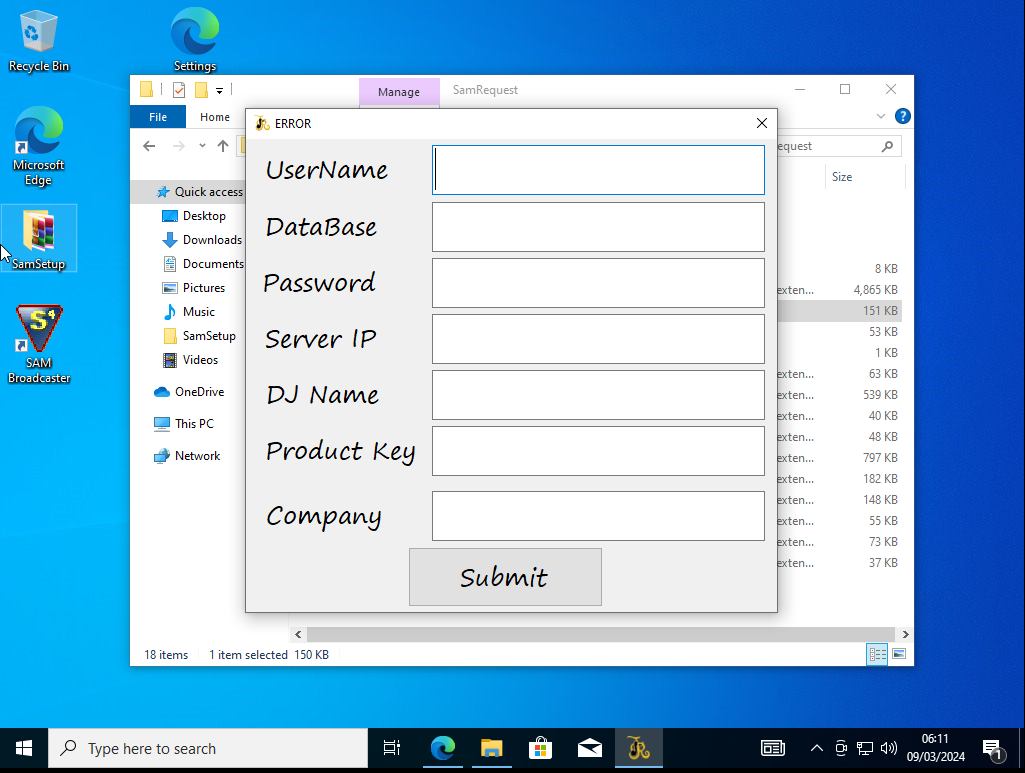
>-> Each person will have a "UserName" "Password" "Product Key" "DJ Name"
Variants are:
DataBase - Self Hosted Systems will still require to use their own setup
Server IP - This is where the Database is in the format IP:Port
Company - What Service Company are You with?
When You Launch it If you've got everything setup - You'll be either Presented With:
ScreenShot 1
OR
ScreenShot 2
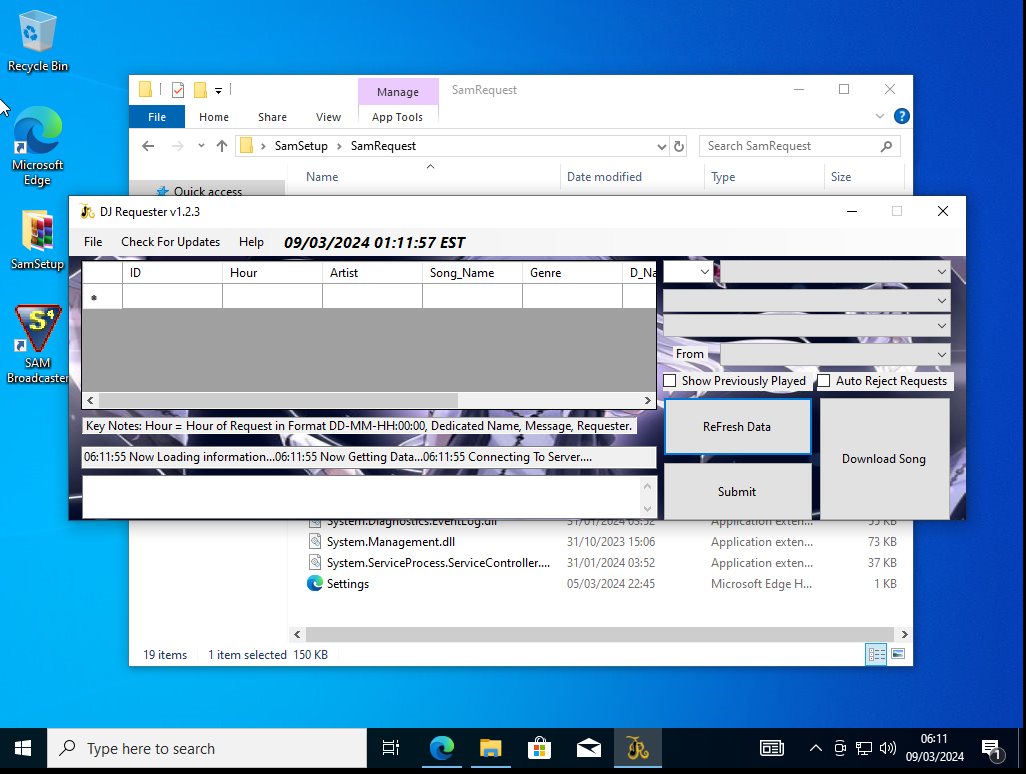
IF You get ScreenShot1 Fill out the details required to launch to ScreenShot2
If you are self hosted you'll need to sort out the databases that are required; If You've Purchased a License which includes the following
-> Website (Yes It may be a basic interface but is a website)
-> Database Storage system (This includes the requests)
-> Domain Setup And Registration.
-> MSSQL / MySQL / Auto DJ Setup
You'll be Informed when Maintenance will be brought up if you've gone with the purchased license route!
If You've gone with just the License of DJ Requester you're going to have to figure out the Website / Domain Setup.
The Setup!!
If You've used a customized domain it'll be something like
https://www.undergroundfxradio.com/conatct-us.html
You can select the DJ Name from here! And Submit requests From this page to the appropriate DJ!
If you've decided to go with a predetermined domain you may experience issues with SSL Certificate licenses being self signed!
If You want to buy a domain and then ask for the correct setup to be done to it to ensure this issue doesn't happen
We will arrange that for you!
Under Help Option There Is How To Use OR Watch The Following video to get a more in depth look at how it handles:
Which if You've Used The Setup Guide of Sam Broadcaster Is Covered There However, I Will Repeat It Here!
Downloads:
https://www.focusgameonline.com/SamBroadcaster/DJ_Request.rar
https://rarlab.com
After downloading and installing Net Framework; This requires the product to have your details
Which should either be provided by your Administrator or Through your Payment email Address!
>-> Each person will have a "UserName" "Password" "Product Key" "DJ Name"
Variants are:
DataBase - Self Hosted Systems will still require to use their own setup
Server IP - This is where the Database is in the format IP:Port
Company - What Service Company are You with?
When You Launch it If you've got everything setup - You'll be either Presented With:
ScreenShot 1
OR
ScreenShot 2
IF You get ScreenShot1 Fill out the details required to launch to ScreenShot2
If you are self hosted you'll need to sort out the databases that are required; If You've Purchased a License which includes the following
-> Website (Yes It may be a basic interface but is a website)
-> Database Storage system (This includes the requests)
-> Domain Setup And Registration.
-> MSSQL / MySQL / Auto DJ Setup
You'll be Informed when Maintenance will be brought up if you've gone with the purchased license route!
If You've gone with just the License of DJ Requester you're going to have to figure out the Website / Domain Setup.
The Setup!!
If You've used a customized domain it'll be something like
https://www.undergroundfxradio.com/conatct-us.html
You can select the DJ Name from here! And Submit requests From this page to the appropriate DJ!
If you've decided to go with a predetermined domain you may experience issues with SSL Certificate licenses being self signed!
If You want to buy a domain and then ask for the correct setup to be done to it to ensure this issue doesn't happen
We will arrange that for you!
Under Help Option There Is How To Use OR Watch The Following video to get a more in depth look at how it handles:
#15
Software Links / DJ Requester
Last post by DeadlyDeathAngel - May 24, 2024, 12:49 PMThis is the Release of DJ Requester 1.2.1 With Various Plugins The Change Log Over at: Change Log
To Grab This Copy; Please either grab from the links or from here:
Automatically Updated Requester Recommended Link
See Attached for Version 1.2.3 This Version Will Become Out Of Date With Time
For Version 1.2.1: Here
For Version 1.2.2: Invalid Due To Given out Before 1.2.3.
For Version 1.2.3: Here
To Grab This Copy; Please either grab from the links or from here:
Automatically Updated Requester Recommended Link
See Attached for Version 1.2.3 This Version Will Become Out Of Date With Time
For Version 1.2.1: Here
For Version 1.2.2: Invalid Due To Given out Before 1.2.3.
For Version 1.2.3: Here
#16
Software Links / Auto Setup
Last post by DeadlyDeathAngel - May 24, 2024, 12:48 PMIn order to sort this out please fill out the details for Encoders 1 - 5 of your Sam Broadcaster, and this only works with FRESH INSTALLATION of Sam Broadcaster!!
#17
Change Log / Change Log From 1.2.1 to 1.2.3
Last post by DeadlyDeathAngel - May 24, 2024, 12:47 PMWhats Changed In Version 1.2.3
>-> Upgraded from Net Framework 6.0 -> 8.0 (Damn You Microsoft!)
>-> Changed Server Side To Remove Update From Authentication database
>-> Changed Background of ChangeLog to Stretch Mode
>-> Added /themes directory for personalized themes
>-> Generalized cleanup of the program
>-> Made sure ServerLog file is correctly placed with Application.StartupPath
>-> Changed Settings To Use Read All Text Rather Than Read The File Each time (waste of time!)
-> This new Setup Reads ALL the Text and finds the variables Required under Globals.
-> Removal of Unnecessary LineChange
-> Removal of LineChanger plugins - it now reads from everywhere!
>-> Got More Information to do with Windows Setup
-> Might actually work for Windows 11 Now! YAY
>-> Font Error - Does NOT SETUP FONTS
>-> Change Theme - Error.---- FIXED
=>> ADMIN PAGE =<<
>-> Added Ability to BAN IPs Remotely On The Requester
>-> Added IP Lookup of Server using Database
Due to the update; Some things are broken such as the 1.2.3 Settings2.xml - which is because the file exists even though, it does work - does require user input at the current time! During the next release the following things are due to be fixed:
-> Youtube Downloader not working as of 1.2.3 due to domain change.
-> Database of Admin Page to actually acknowledge the ban list.
-> Added Global Choice to ban user over all.
-> Fix of Settings2.xml
Messaging Admin feature will ping directly to the Admins of the station, this is a BRAND NEW and TEST FEATURE! IF SUCCESSFUL, We're making this a mandated feature!!! We're also making it so that the message admin feature will have a priority feature; regardless. The new feature of Message Admin will require a response before you can submit another ticket to the Admin in question.
>-> Upgraded from Net Framework 6.0 -> 8.0 (Damn You Microsoft!)
>-> Changed Server Side To Remove Update From Authentication database
>-> Changed Background of ChangeLog to Stretch Mode
>-> Added /themes directory for personalized themes
>-> Generalized cleanup of the program
>-> Made sure ServerLog file is correctly placed with Application.StartupPath
>-> Changed Settings To Use Read All Text Rather Than Read The File Each time (waste of time!)
-> This new Setup Reads ALL the Text and finds the variables Required under Globals.
-> Removal of Unnecessary LineChange
-> Removal of LineChanger plugins - it now reads from everywhere!
>-> Got More Information to do with Windows Setup
-> Might actually work for Windows 11 Now! YAY
>-> Font Error - Does NOT SETUP FONTS
>-> Change Theme - Error.---- FIXED
=>> ADMIN PAGE =<<
>-> Added Ability to BAN IPs Remotely On The Requester
>-> Added IP Lookup of Server using Database
Due to the update; Some things are broken such as the 1.2.3 Settings2.xml - which is because the file exists even though, it does work - does require user input at the current time! During the next release the following things are due to be fixed:
-> Youtube Downloader not working as of 1.2.3 due to domain change.
-> Database of Admin Page to actually acknowledge the ban list.
-> Added Global Choice to ban user over all.
-> Fix of Settings2.xml
Messaging Admin feature will ping directly to the Admins of the station, this is a BRAND NEW and TEST FEATURE! IF SUCCESSFUL, We're making this a mandated feature!!! We're also making it so that the message admin feature will have a priority feature; regardless. The new feature of Message Admin will require a response before you can submit another ticket to the Admin in question.
#18
Change Log / Change Log From 1.2.0 to 1.2.1
Last post by DeadlyDeathAngel - May 24, 2024, 12:47 PMWhats Changed In Version 1.2.1
>-> Taken out Go Live feature - PAL script no exist.
>-> Change / Update Authentication to Product Keys
-> Changed User Creation to Read Only On Activation
>-> Changed the way Themes are handled instead selection screen!
>-> Fix up Submission button
>-> Email Setup - Requires UserName / DJ Name also & Product Key.
>-> Updated Packages to Nuget - Required for things to function
>-> Added Shuffle Auto & Refresh Auto to Admin Panel
>-> Added Version Number to Name of the Requester
-> Also allows automatic updates
>-> Added Pal Scripts to Pro Edition
>-> Added Change Log Menu Option
>-> Taken out Go Live feature - PAL script no exist.
>-> Change / Update Authentication to Product Keys
-> Changed User Creation to Read Only On Activation
>-> Changed the way Themes are handled instead selection screen!
>-> Fix up Submission button
>-> Email Setup - Requires UserName / DJ Name also & Product Key.
>-> Updated Packages to Nuget - Required for things to function
>-> Added Shuffle Auto & Refresh Auto to Admin Panel
>-> Added Version Number to Name of the Requester
-> Also allows automatic updates
>-> Added Pal Scripts to Pro Edition
>-> Added Change Log Menu Option
Recent Topics
|
Sam Broadcaster Setup With MSSQL - Advanced Users Recommended
by DeadlyDeathAngel
Jul 17, 2025, 06:20 AM |
|
Linux Research & Setup Guide
by DeadlyDeathAngel
Jul 06, 2025, 03:17 PM |
|
Server Maintanance
by Walfmanjack
Jul 06, 2025, 03:16 PM |
|
Supported Applications
by Walfmanjack
Jul 06, 2025, 03:10 PM |
|
Stance On Remote Desktop!
by DeadlyDeathAngel
Jul 06, 2025, 03:04 PM |
|
Welcome To Mouse 2 Mouse Users
by DeadlyDeathAngel
May 31, 2024, 08:17 PM |
|
Change Log From 1.2.3 to 1.2.4
by DeadlyDeathAngel
May 24, 2024, 01:07 PM |
|
Removal Of Sam Broadcaster & XAMPP
by DeadlyDeathAngel
May 24, 2024, 12:52 PM |
|
Setup SamBroadcaster
by DeadlyDeathAngel
May 24, 2024, 12:51 PM |
|
DJ Requester
by DeadlyDeathAngel
May 24, 2024, 12:50 PM |
Powered by EzPortal